Day 2: Windows Autopilot for pre-provisioned deployment
📌 Today, we’ll explore Windows Autopilot with Pre-provisioned deployment. This article provides an overview along with step-by-step guidance to help you understand and implement the process effectively.
Link: https://learn.microsoft.com/en-us/autopilot/tutorial/user-driven/azure-ad-join-workflow
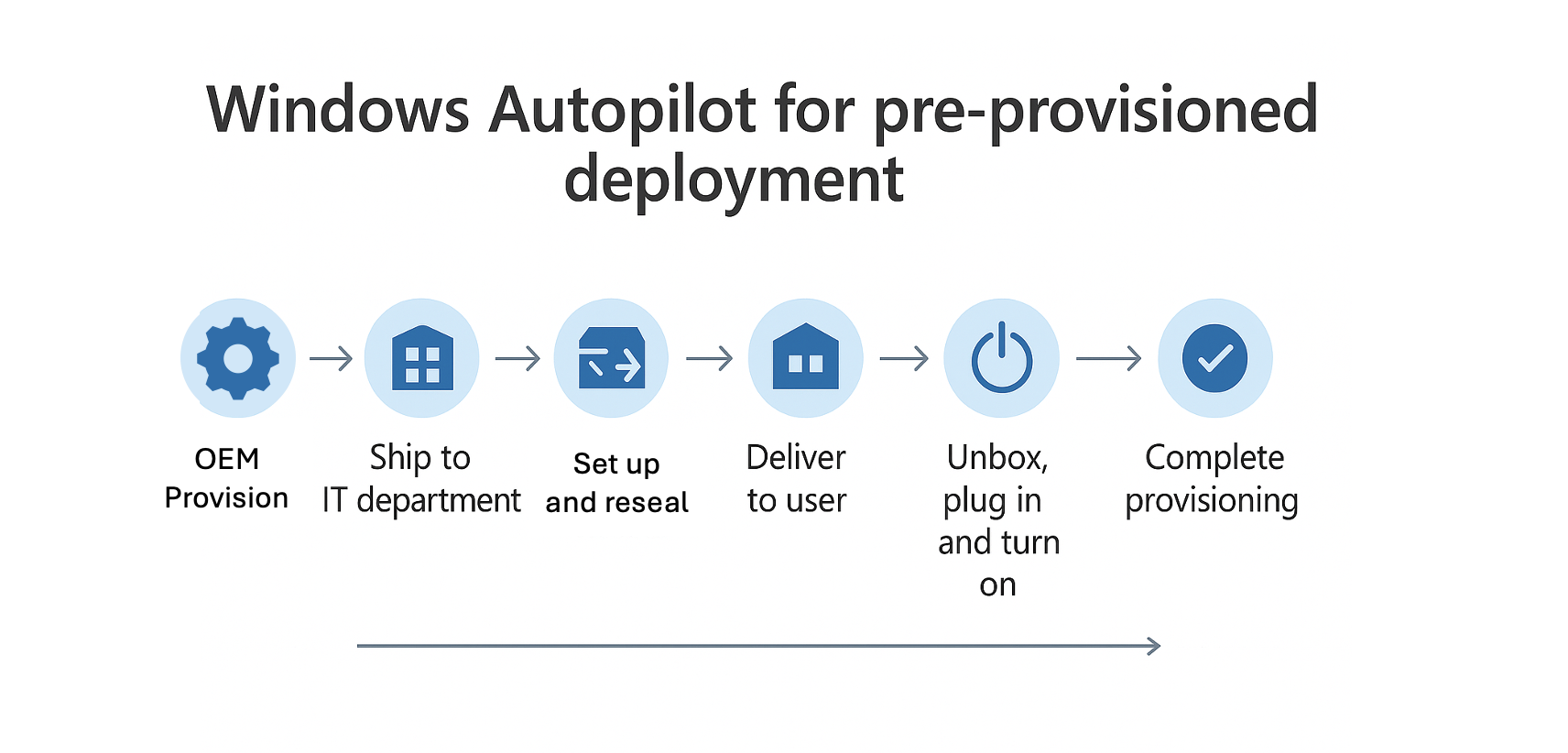
I. Theory
- 1/ What is autopilot with pre-provisioned deployment mode
Designed for a device used by a single user
Deployment is split between IT admin/OEM/reseller and user
Autopilot Pre-Provisioning Mode allows IT to set up and fully configure devices before handing them to end users. Devices are provisioned with apps, policies, and settings in advance, so users can simply sign in and start working — minimizing setup time and improving user experience.
- 2/ When do we use user-driven mode
- The device will be setup fully by IT team before being delivered to end-users
The end-user only needs to perform a minimal number of actions during the deployment process, so that the deployment is faster than the user-driven mode
Suitable when you want to minimize user involvement during the OOBE steps
The device will be used primarily by a single user
- 3/ Requirements and Preparation
Physical devices that support Trusted Platform Module (TPM) 2.0 and device attestation.
Windows Pro, Enterprise, or Education editions.
To be ready to try out Windows Autopilot for pre-provisioned deployment, make sure that existing Windows Autopilot user-driven scenarios can be successfully used: (visit link here….)
II. Deployment
Step 1: Set up Windows automatic Intune enrollment
1/ Sign in to the EntraID
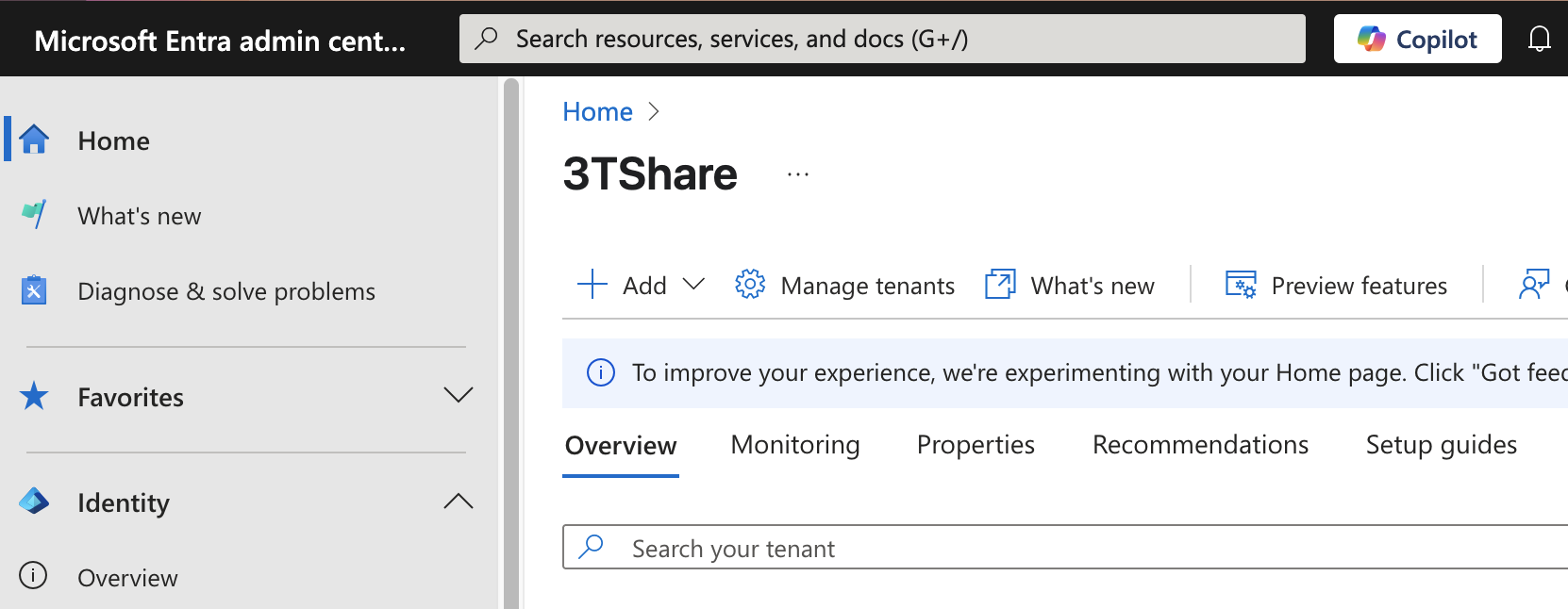
2/ In the EntraID screen > search the keyword MDM and WIP > click on MDM and WIP
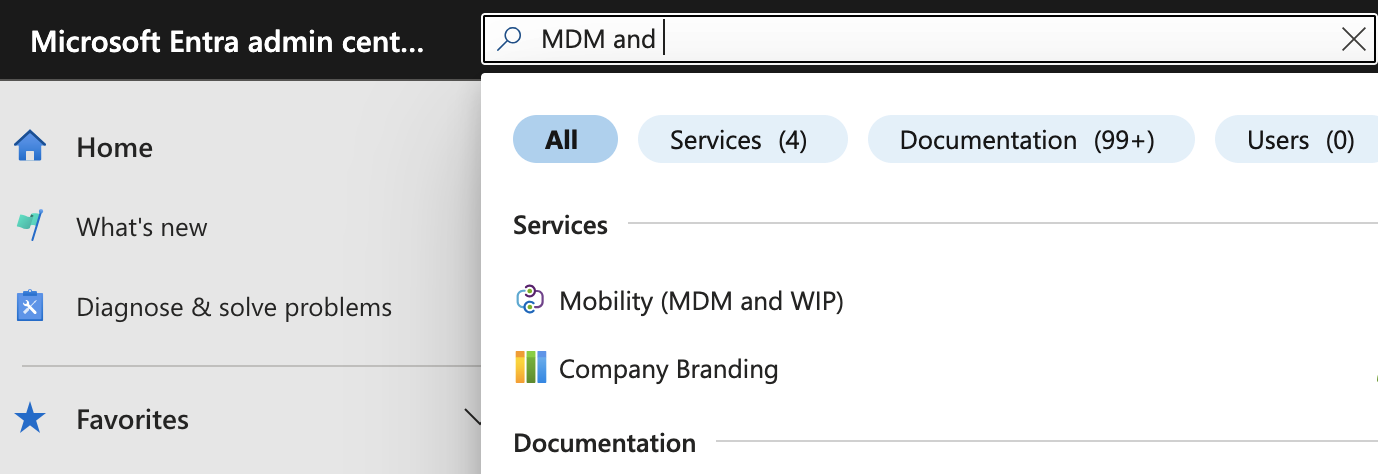
3/ In Mobility (MDM and WIP) > **choose **Microsoft Intune
4/ In Microsoft Intune
4.1/ MDM user scope
check All
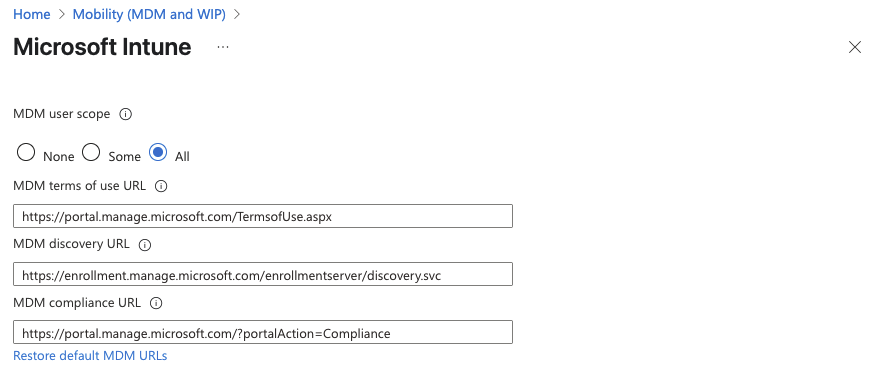
4.2/ Windows Information Protection(WIP) user scope
Check None
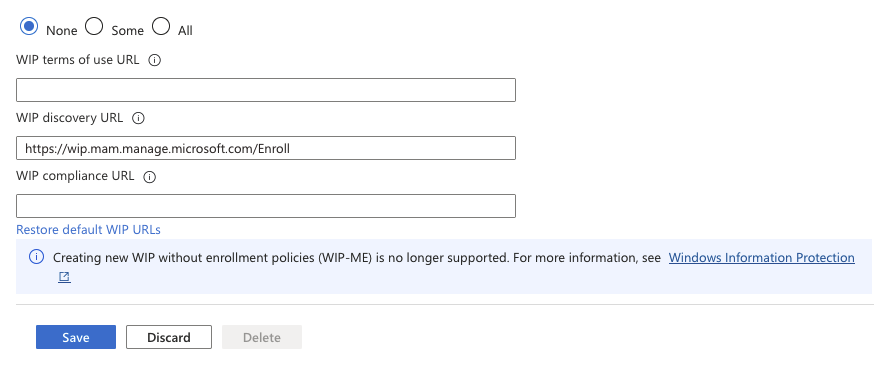
5/ After setting like the picture above select > Save
Step 2: Allow users to join devices to Microsoft Entra ID
1/ Sign in to the Microsoft Entra ID.
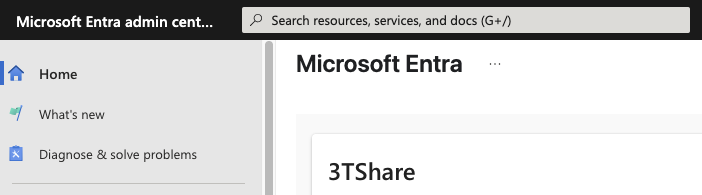
2/ In the EntraID screen, under Identity in the left hand pane, select Devices.
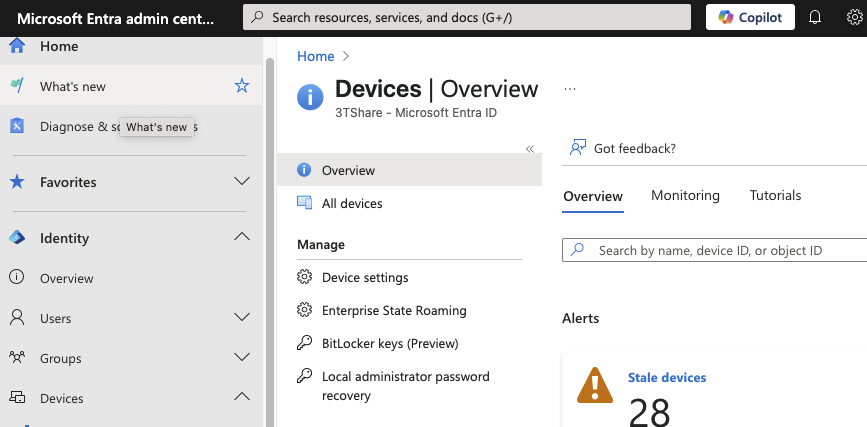
3/ In the Devices | Overview screen, under Manage in the left hand pane, select Device Settings.
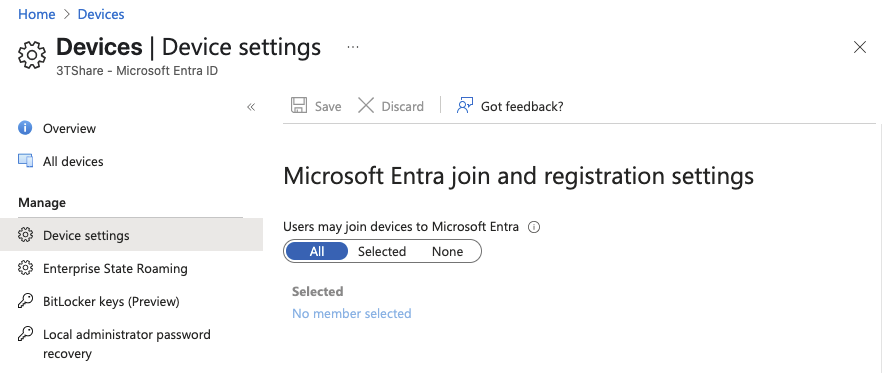
4/ In the Devices | Device settings screen that opens, under Users may join devices to Microsoft Entra, select All
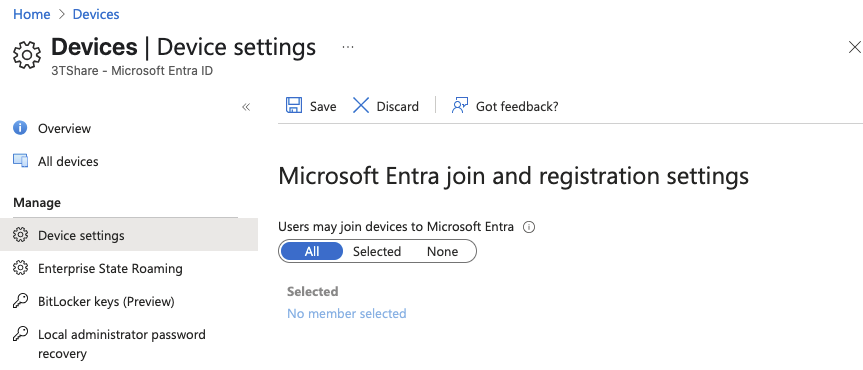
5/ Save
Step 3: Create a device group
Create a dynamic device group for use with Windows Autopilot
1/ Sign into the Microsoft Intune admin center.
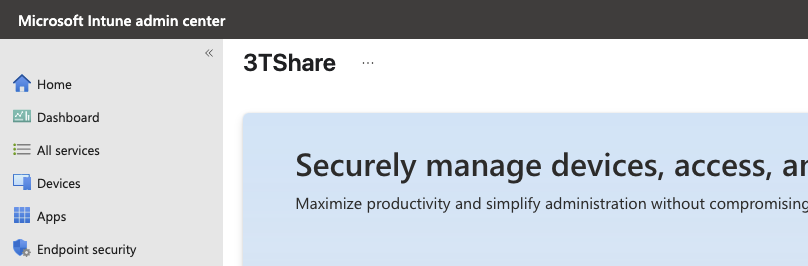
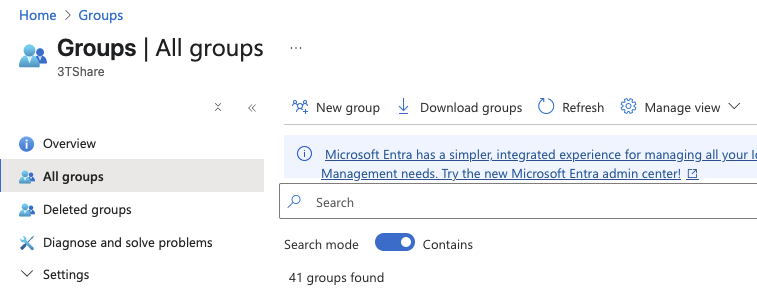
2/ In the Intune Admin Portal > select Groups > All groups
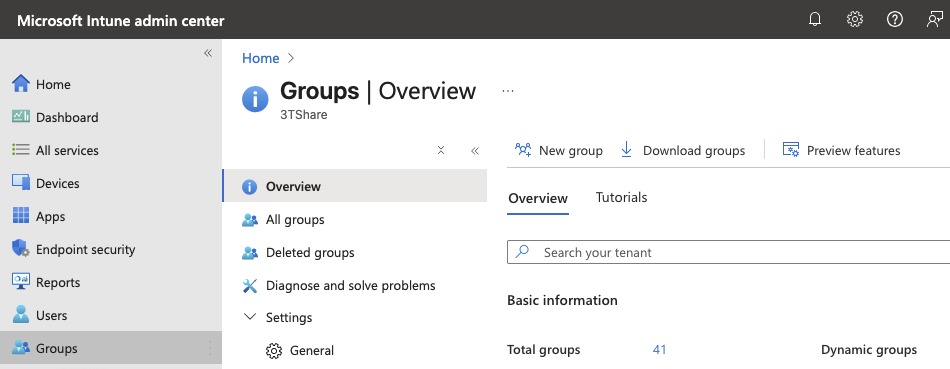
3/ In the Groups | Overview screen > make sure All groups is selected, and then select New group.
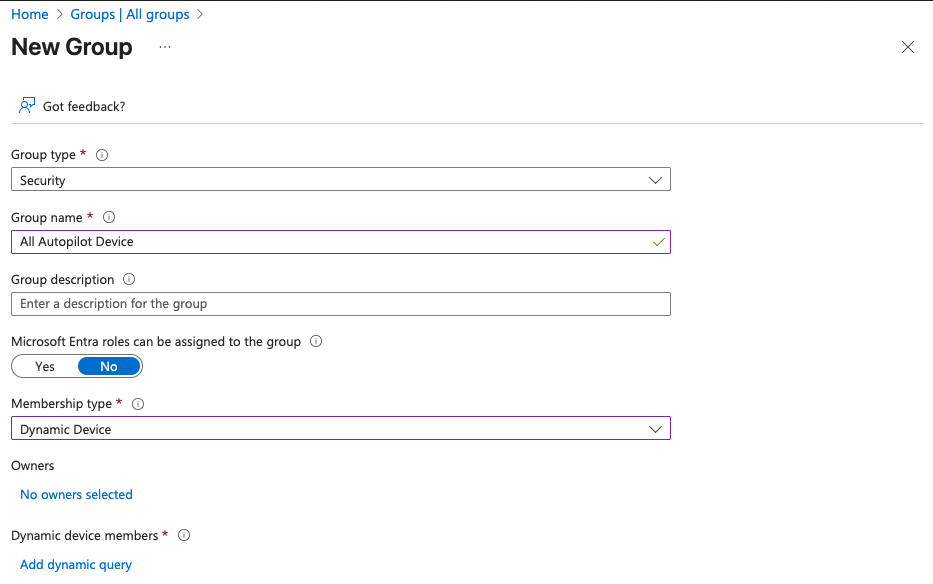
3/ In the New Group screen that opens:
For Group type, select Security.
For Group name, enter a name for the device group [All Autopilot Device]
For Group description > skip
For Microsoft Entra roles can be assigned to the group, select No.
For Membership type, select Dynamic Device.
For Owners > skip
For Dynamic device members, select Add dynamic query. The Dynamic membership rules screen opens.
4/ In the Dynamic membership rules screen
4.1/ at the Rule syntax box > select edit at the top-right hand side (highlight area)
4.2/ Paste in the following rule in the Edit rule syntax screen under Rule syntax
(device.devicePhysicalIDs -any (_ -startsWith "[ZTDid]"))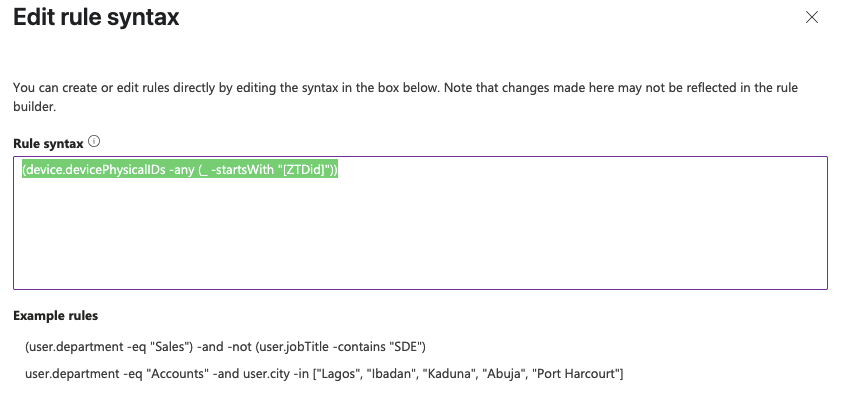
4.3/ Once the rule is pasted in, select OK.
4.4/ Once the desired rule is entered, select Save on the toolbar to close the Dynamic membership rules window.
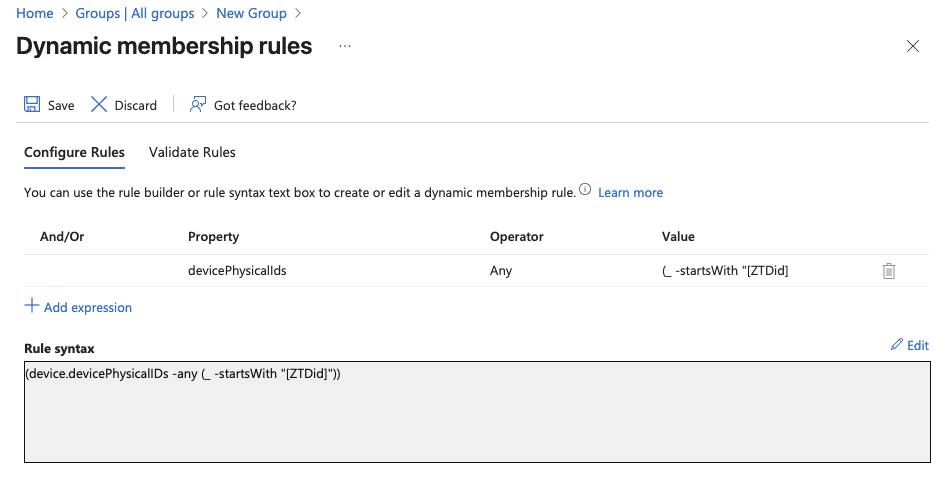
5/ Select Create to finish creating the dynamic device group.
6/ Wait until the notification is successful
- Step 4: Configure and assign Windows Autopilot Enrollment Status Page (ESP) (Edit)
*What is ESP (shortly - copy day1)*
ESP is often configured to wait for only specific apps (instead of all), so users can get to the desktop faster.
A. Upload A Package App
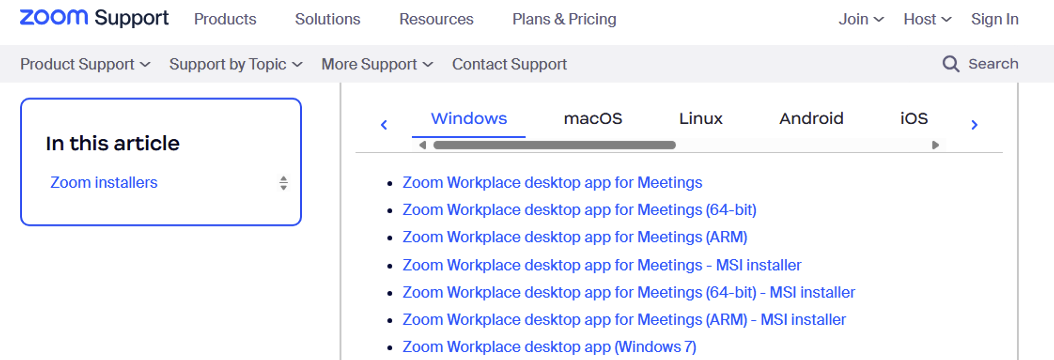
1/ Visit the link here: Zoom Installers
2/ Download Zoom workspace desktop app for Meeting (64bit)- MSI Installer Or using the link here: https://zoom.us/client/latest/ZoomInstallerFull.msi?archType=x64
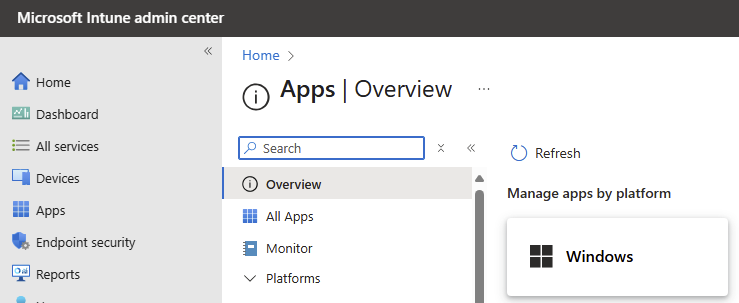
3/ Sign in to the Microsoft Intune admin center.
2/ Select Apps > Apps | Overview > Windows.
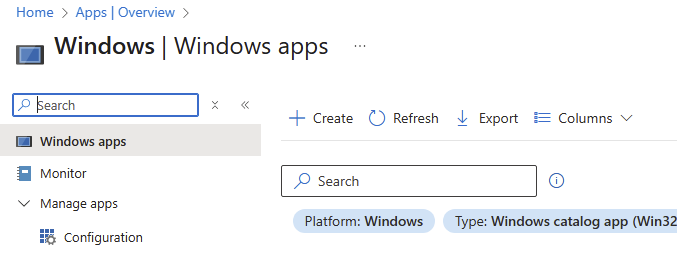
3/ In Windows | Windows Apps > select Create
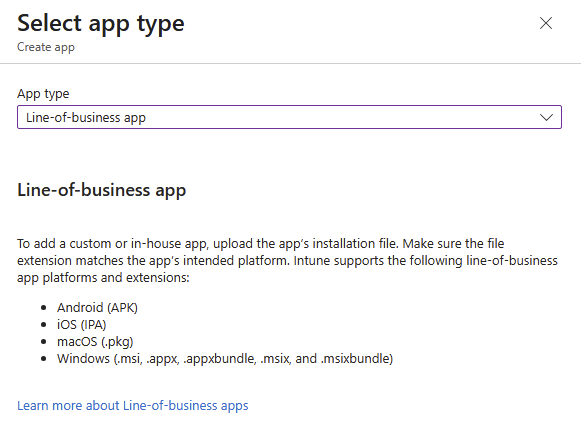
4/ In the Select app type pane, under the Other app types, select Line-of-business app.
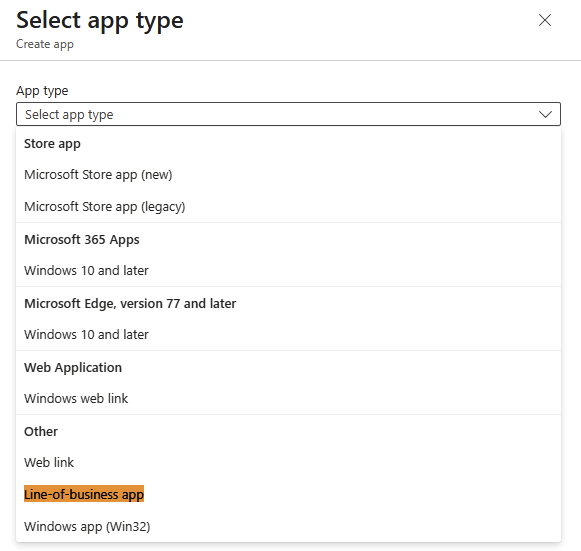
4/ Select Select. The Add app steps are displayed.
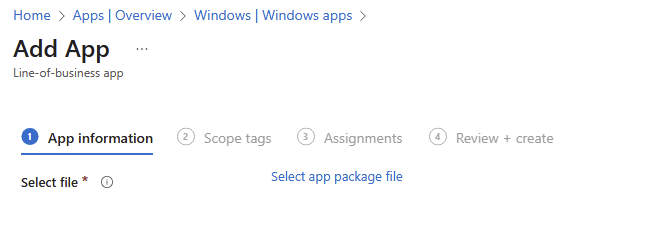
5/ In the Add app pane, select Select app package file.
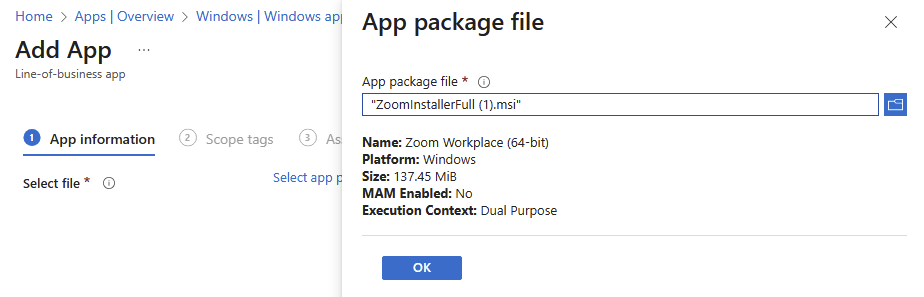
6/ Upload the ZoomMSI file downloaded recently, select OK
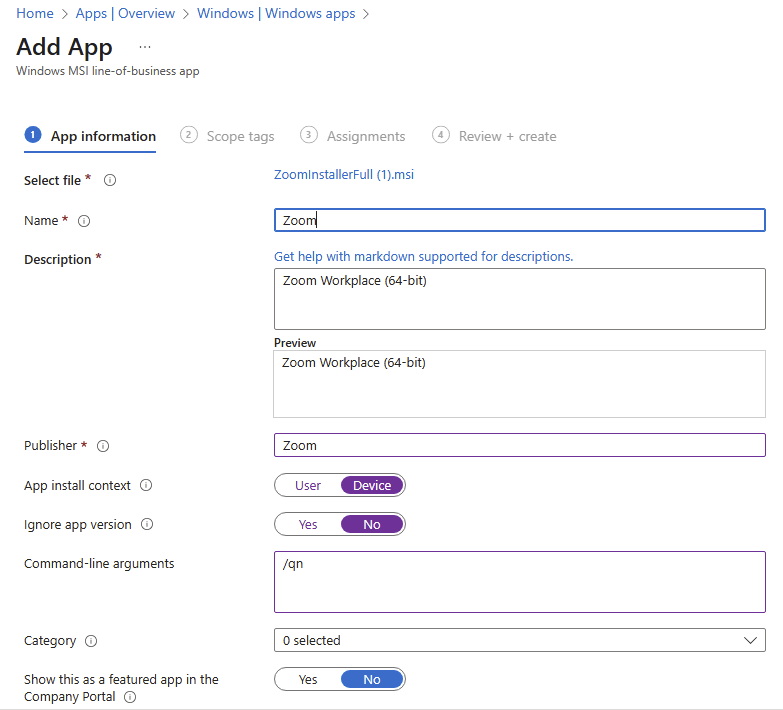
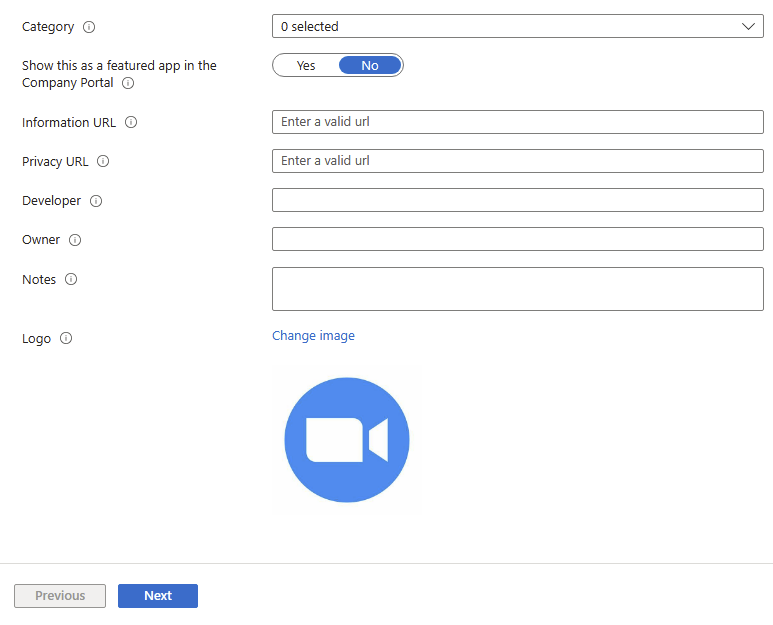
7/ In App information > select Next
Name: Zoom
Description: skip
Publisher: Zoom
App install context: Device
Ignore app version: No
Command-line arguments:
/qnUpload Logo
The other fields: skip
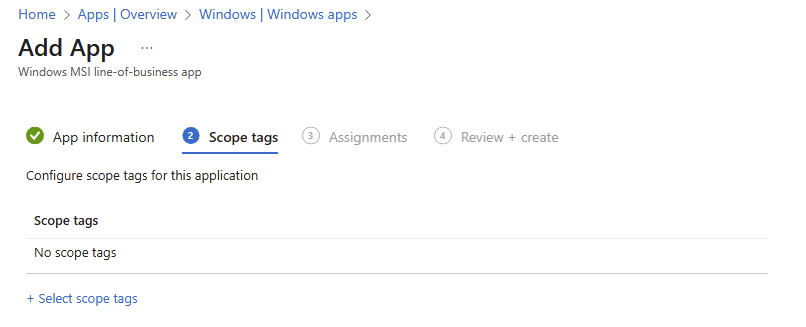
8/ At the scope tags screen > select Next
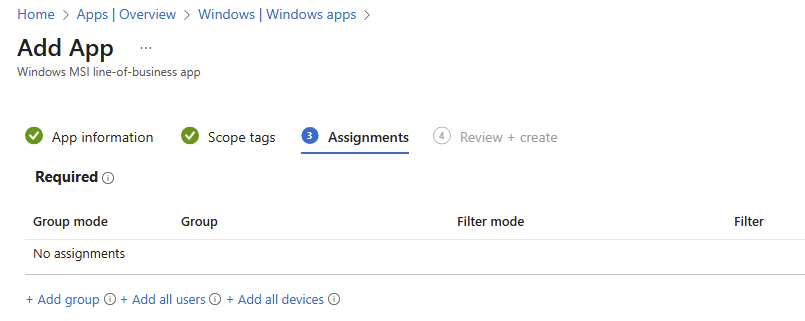
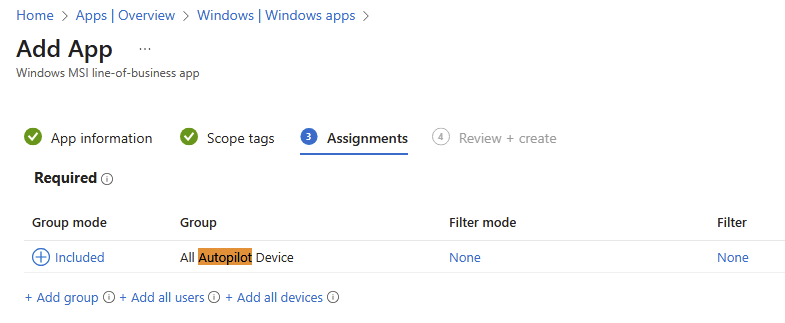
9/ At the Assignments screen > Assign to the desired group > select Next
9.1/ At the Required header > select add group
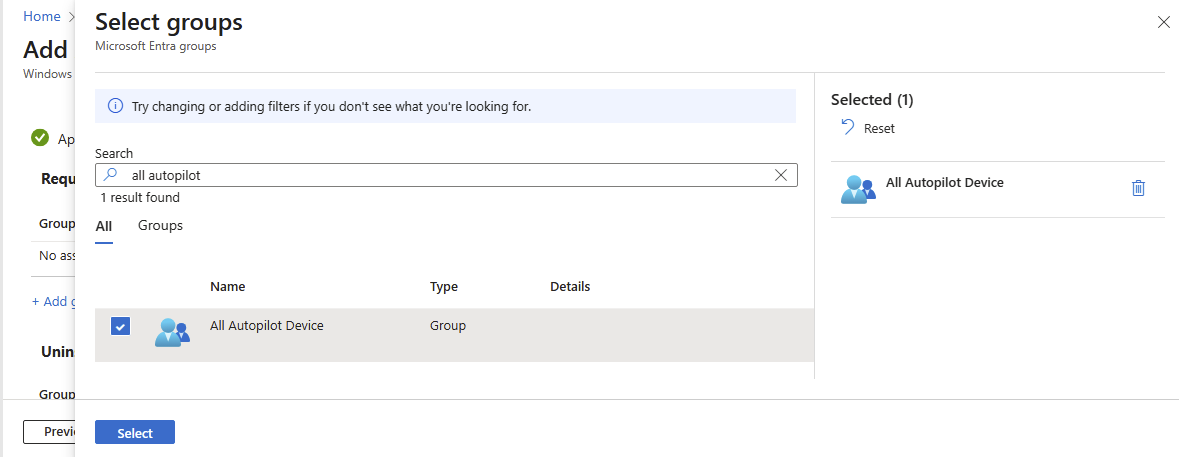
9.2/ Enter [All Autopilot Device] > Check box > click Select
9.3/ Ensure the target group is there > select Next
10/ At the review + Create tab > select create
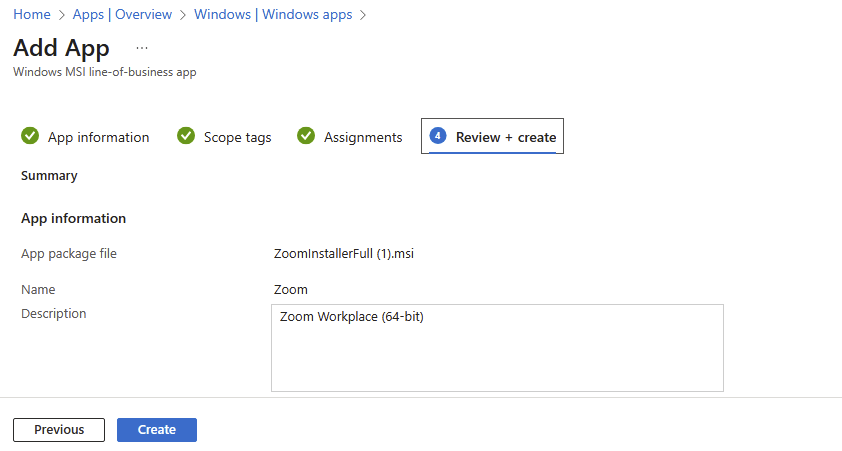
11/ Wait until the uploading zoom is completed
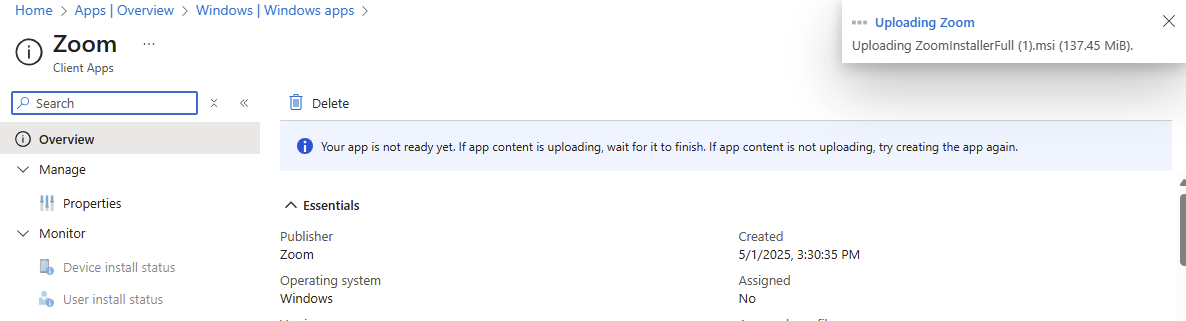
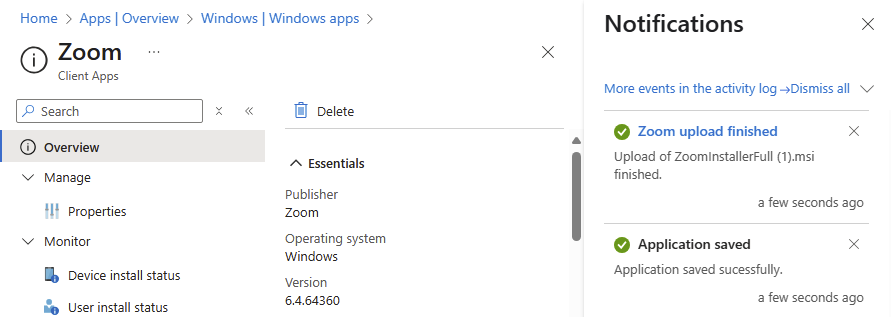
12/ uploading process is successful
B. Create ESP Profile
1/ Sign into the Microsoft Intune admin center.
2/ In the Home screen, select Devices in the left hand pane.
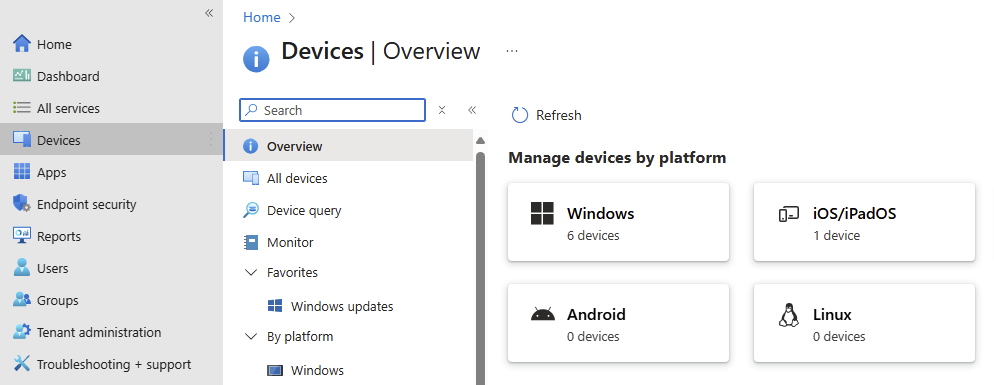
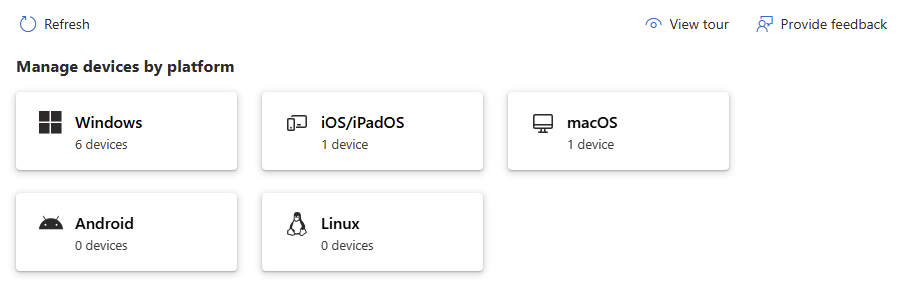
3/ In the Devices | Overview screen, under Manage devices by platform, select Windows.
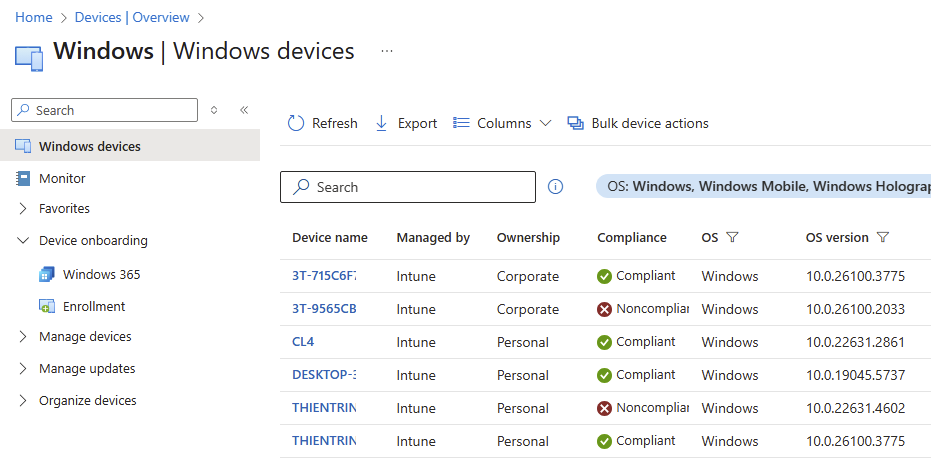
4/ In the Windows | Windows devices screen, under Device onboarding, select Enrollment at the left pane side.
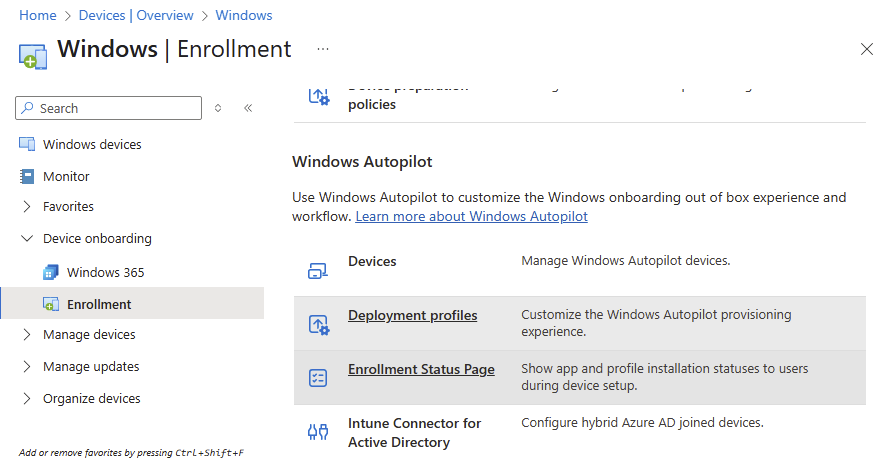
5/ In the Windows | Windows enrollment screen, under Windows Autopilot, select Enrollment Status Page.
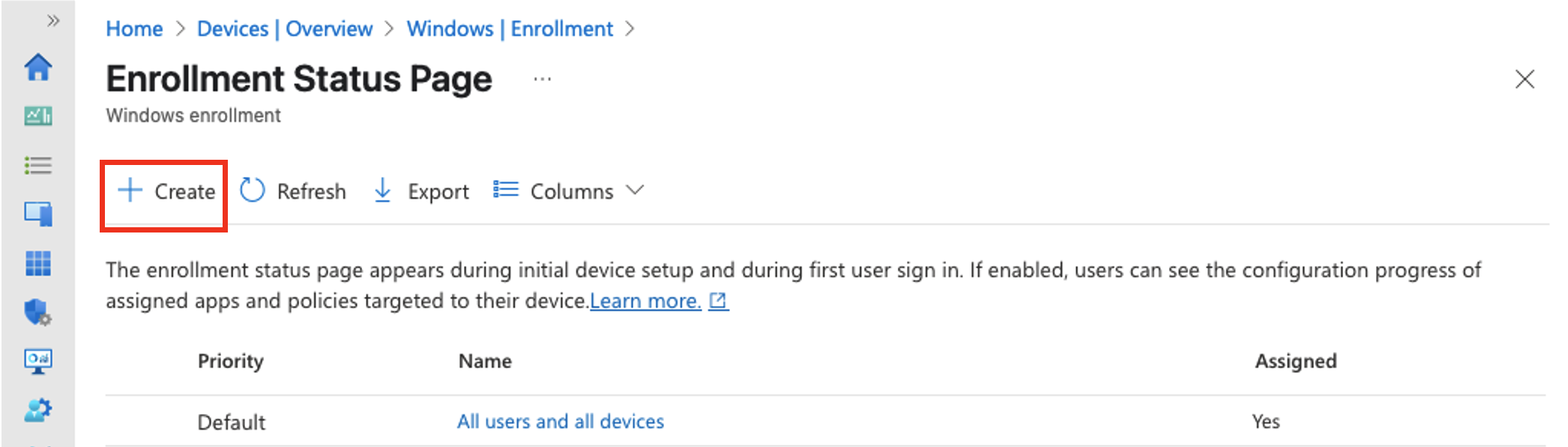
6/ In the Enrollment Status Page screen that opens, select Create.
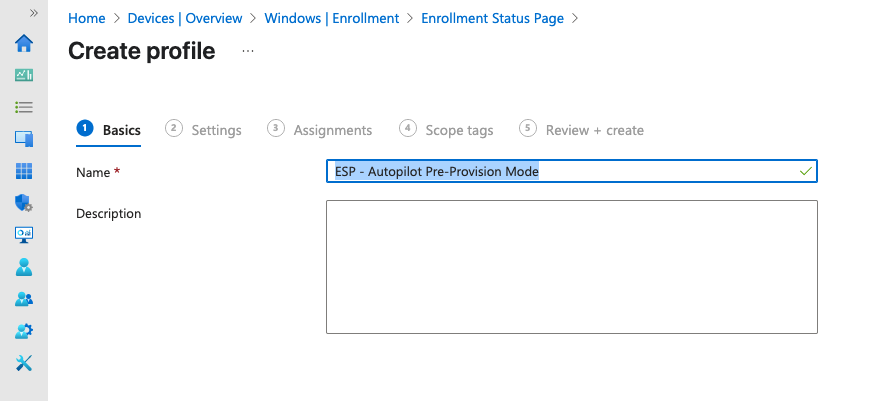
7/ The Create profile screen opens. In the Basics page:
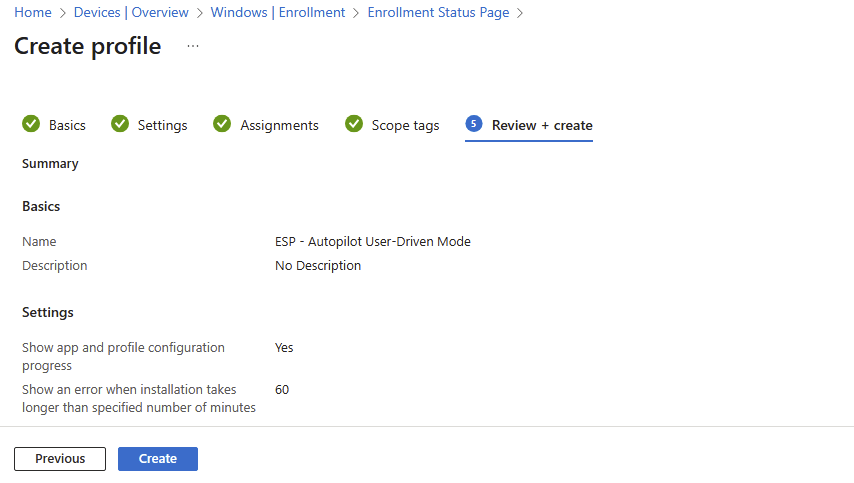
Next to Name, enter [ESP - Autopilot Pre-Provision Mode]
Next to Description, skip
Select Next.
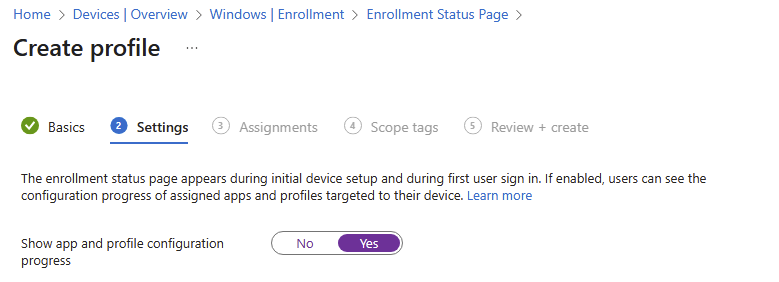
8/ In the Settings page, toggle the option Show app and profile configuration progress to Yes.
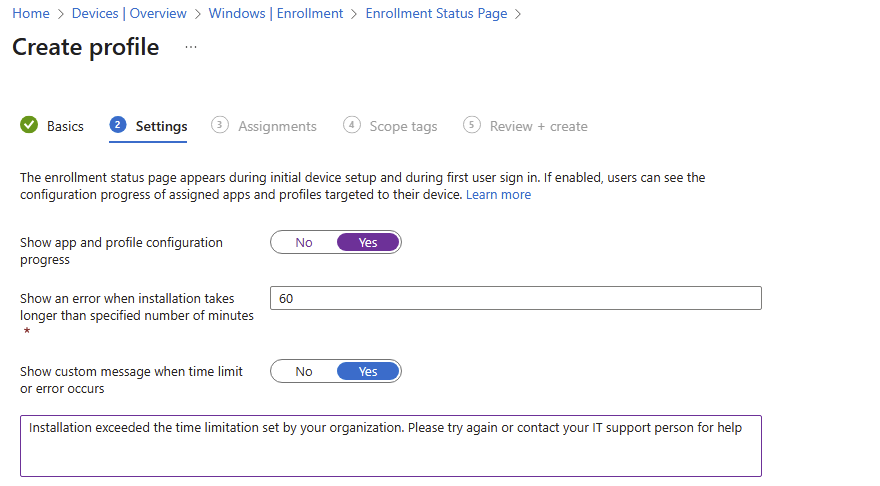
8.1/ After toggling the setting to Yes > configure these settings following
Show an error when installation takes longer than specified number of minutes: 60
Show custom message when time limit or error occurs: Yes
in the box message: [Installation exceeded the time limitation set by your organization. Please try again or contact your IT support person for help]
8.2/ After entering the message > turn on these settings below
Turn on log collection and diagnostics page for end users: Yes
Only show page to devices provisioned by out-of-box experience (OOBE): Yes
Block device use until all apps and profiles are installed: Yes
Allow users to reset device if installation error occurs: Yes
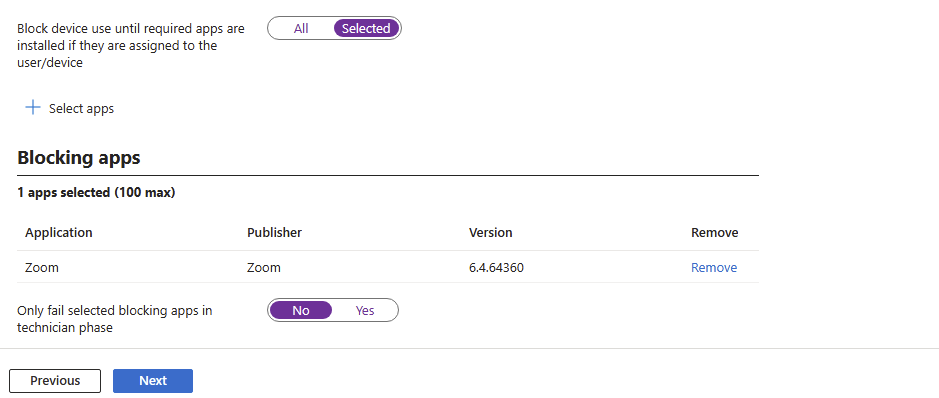
Block device use until required apps are installed if they are assigned to the user/device: Selected
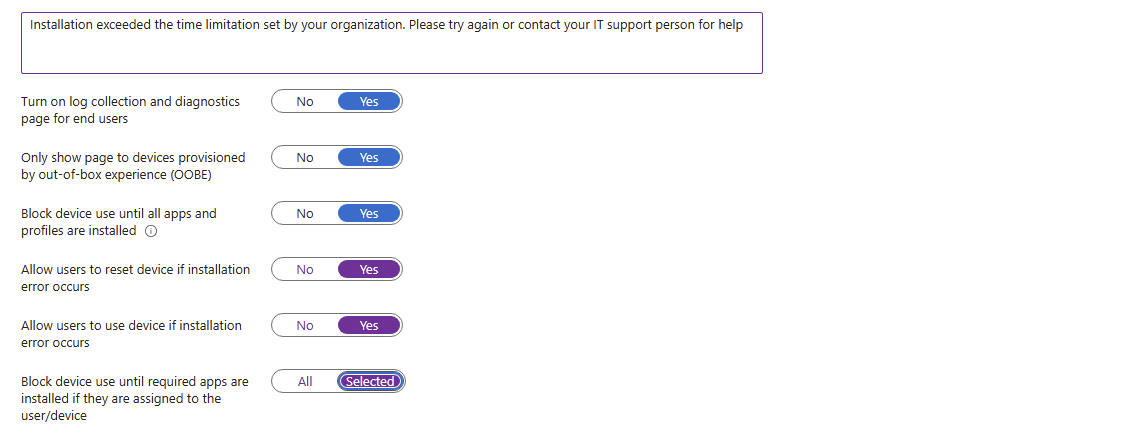
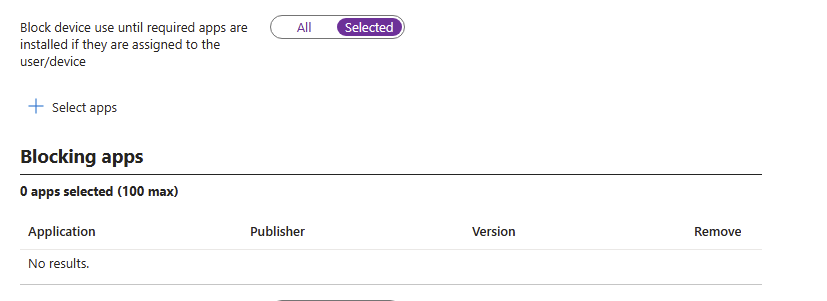
8.2/ After choosing [selected] mode > click on +select apps
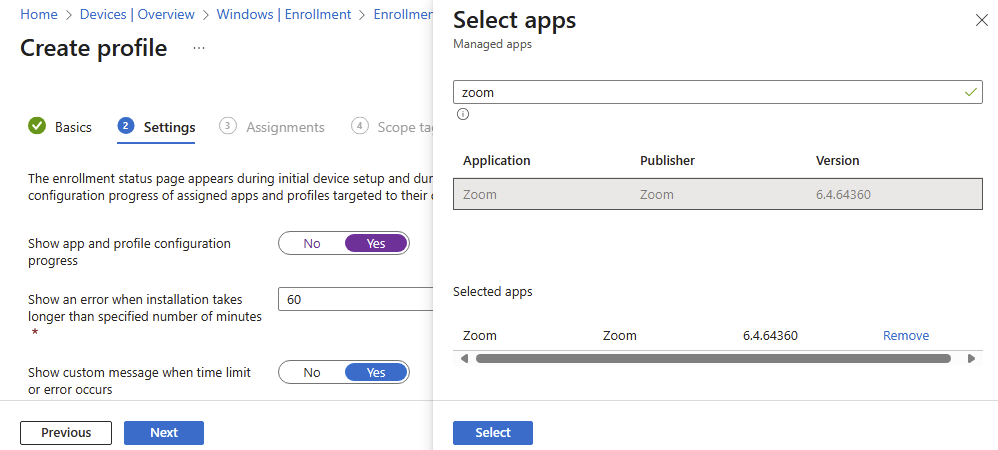
8.3/ At the Select apps > search Zoom > Click on Zoom and select
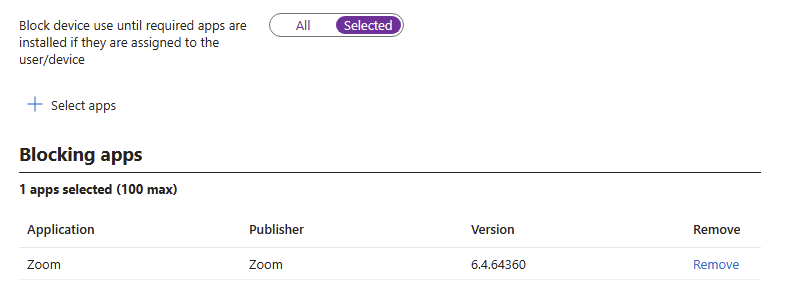
8.3/ Ensure Zoom is listed in the Blocking apps list > select Next
8.4/ After adding Zoom, at [Only fail selected blocking apps in technician phase] > Select No > then select Next
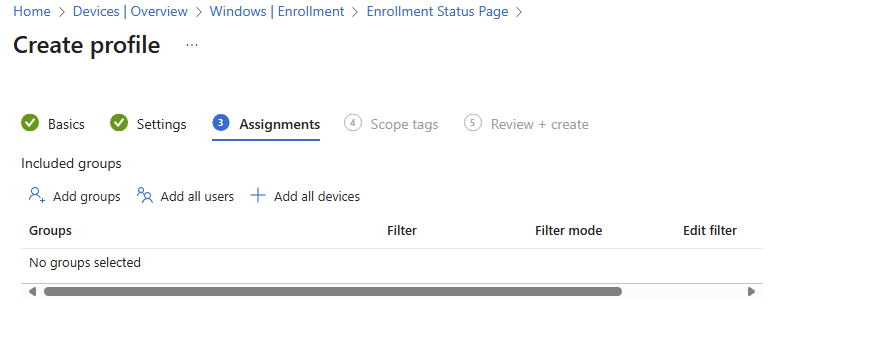
9/ at Assignment tab > click add groups
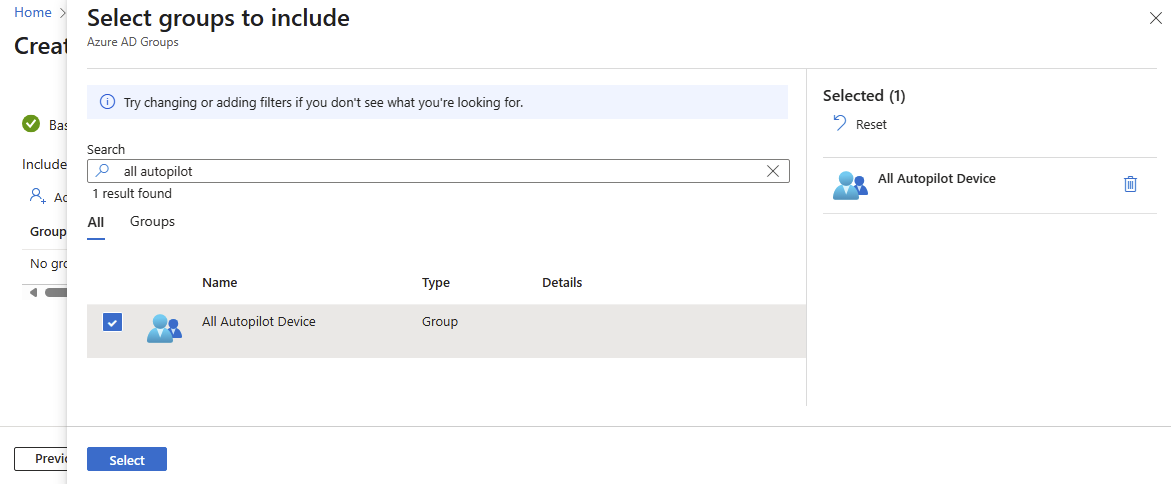
9.1/ At the select groups to include
Search [All autopilot device]
Check box and click Select
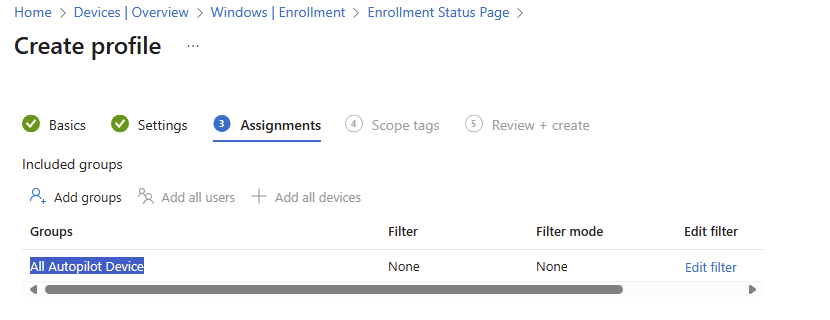
10/ Ensure the target group is listed in the list > select Next
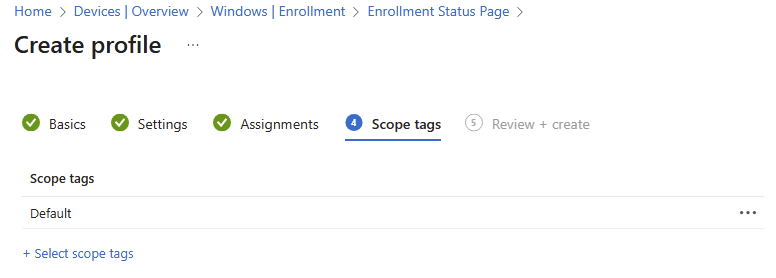
11/ At the scope tags > select Next
12/ At the Review and create tab > select Create
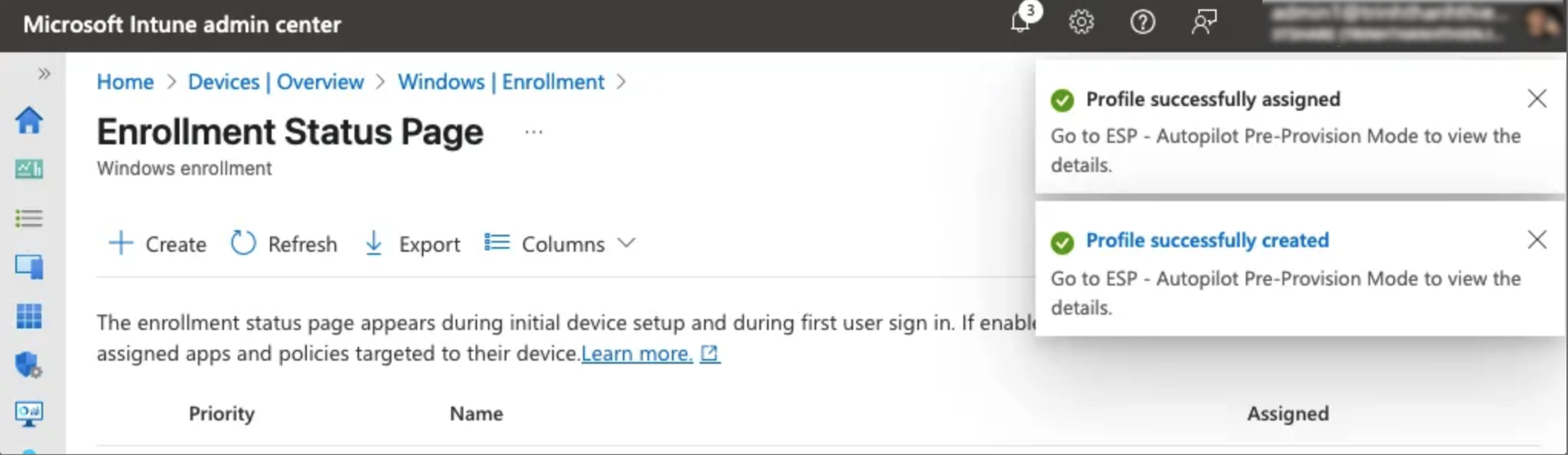
13/ Waiting until the notifications shows [profile successfully created /assigned]
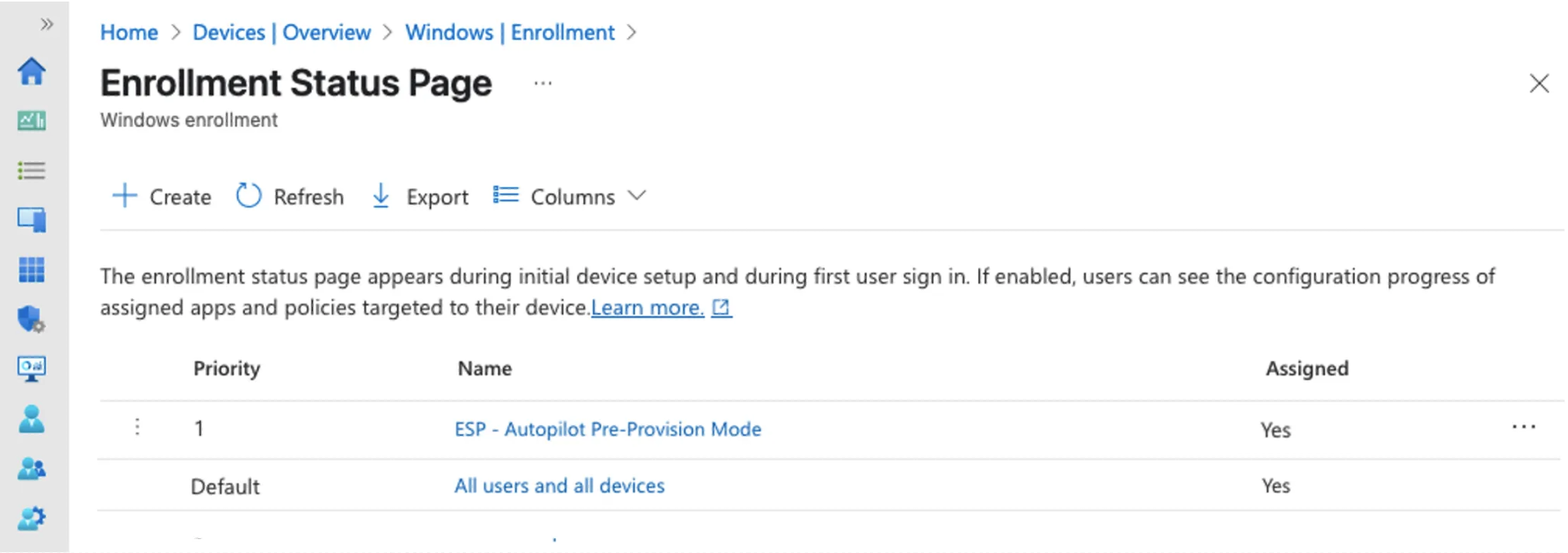
Ensure that the new profile is listed in the list like the picture below
- Step 5: Create and assign Windows Autopilot profile (Edit)
Sign into the Microsoft Intune admin center.
In the Home screen, select Devices in the left hand pane.
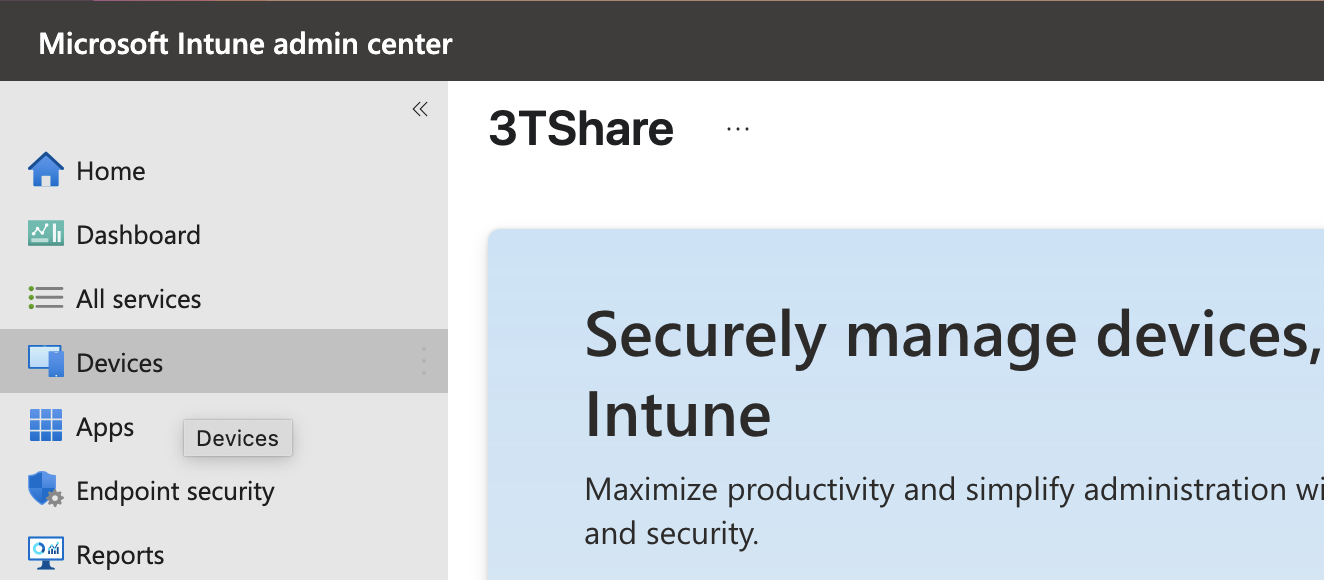
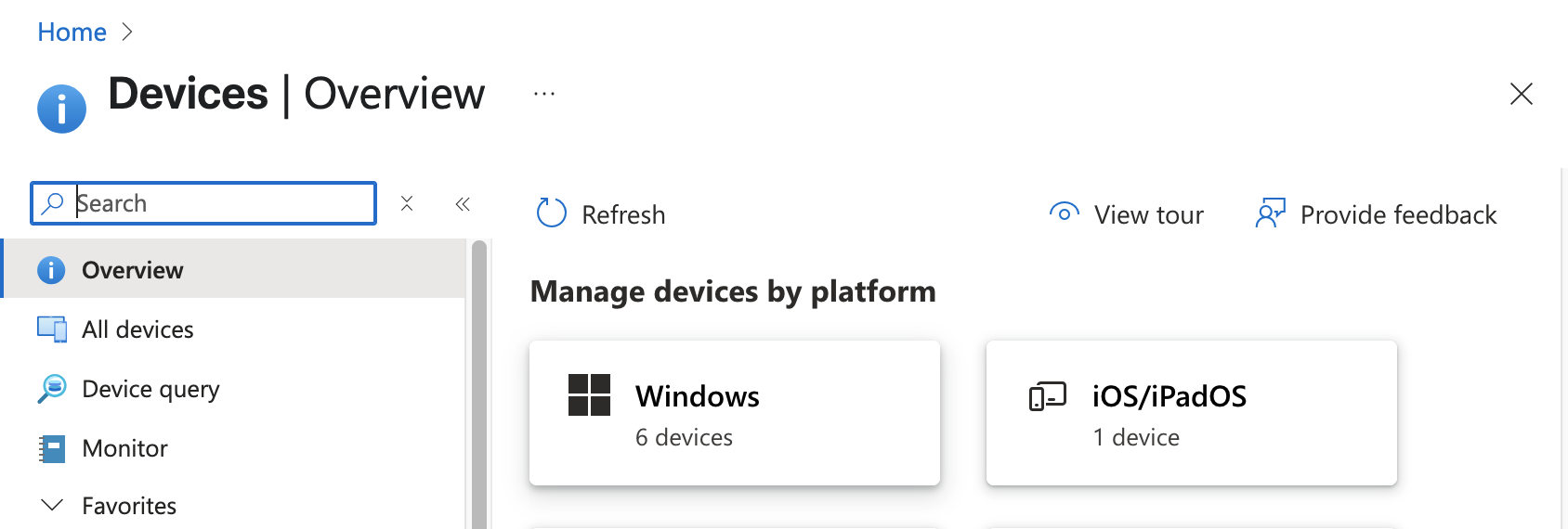
In the Devices | Overview screen, under By platform, select Windows.
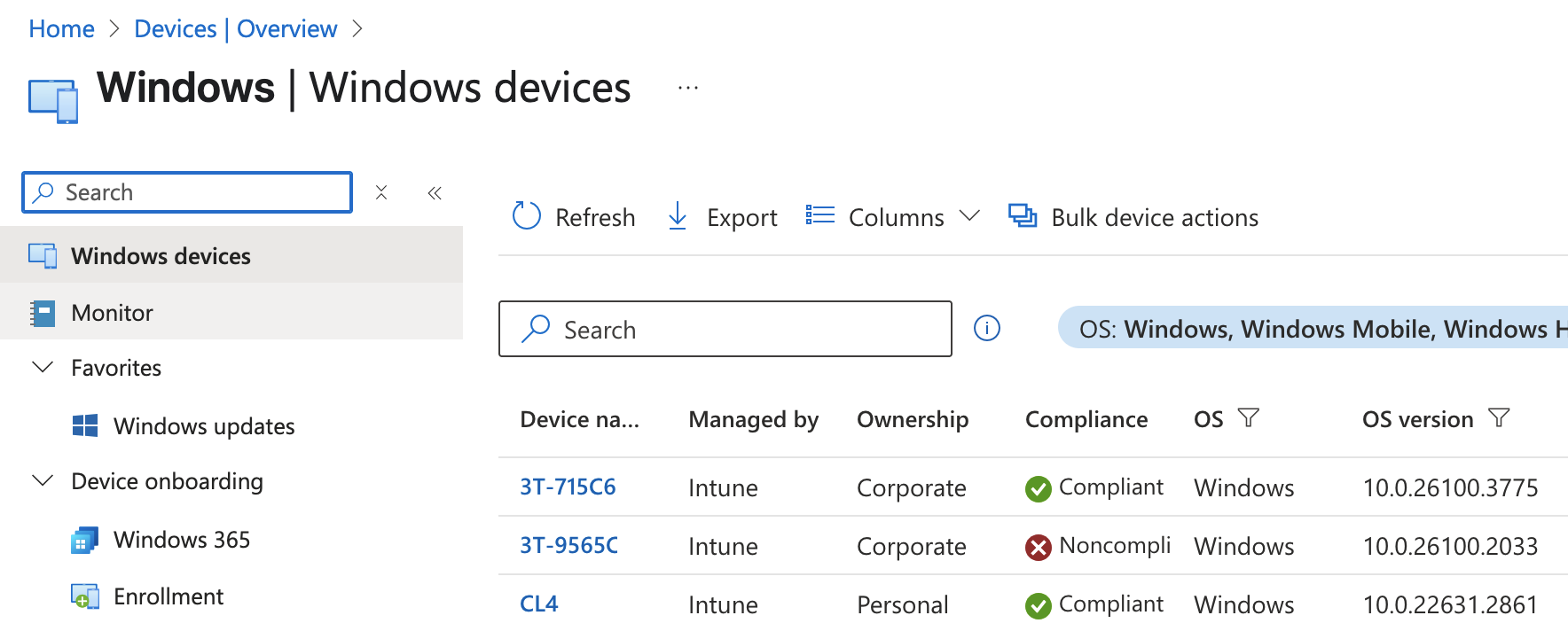
In the Windows | Windows devices screen, under Device onboarding, select Enrollment.
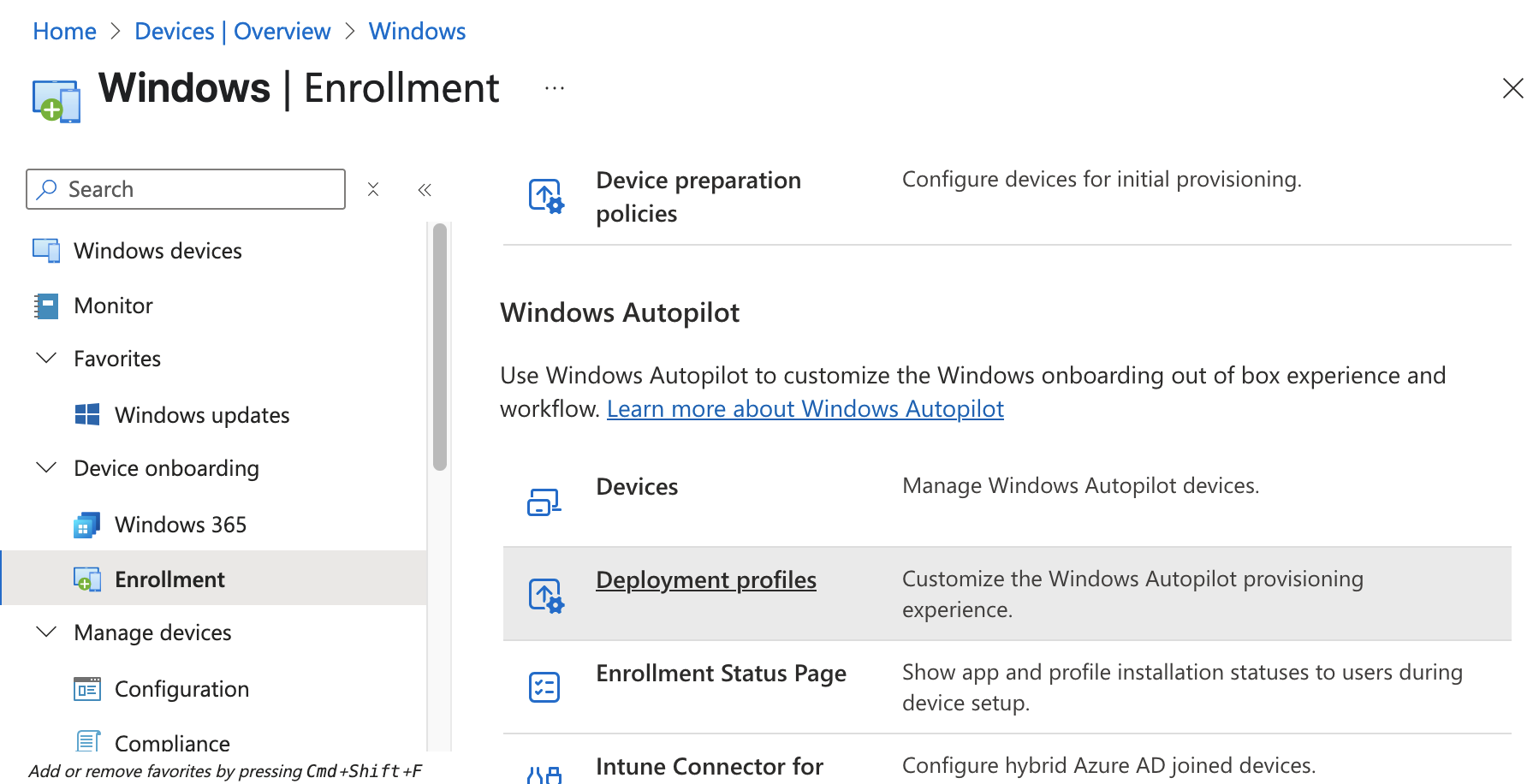
In the Windows | Windows enrollment screen, under Windows Autopilot, select Deployment Profiles.
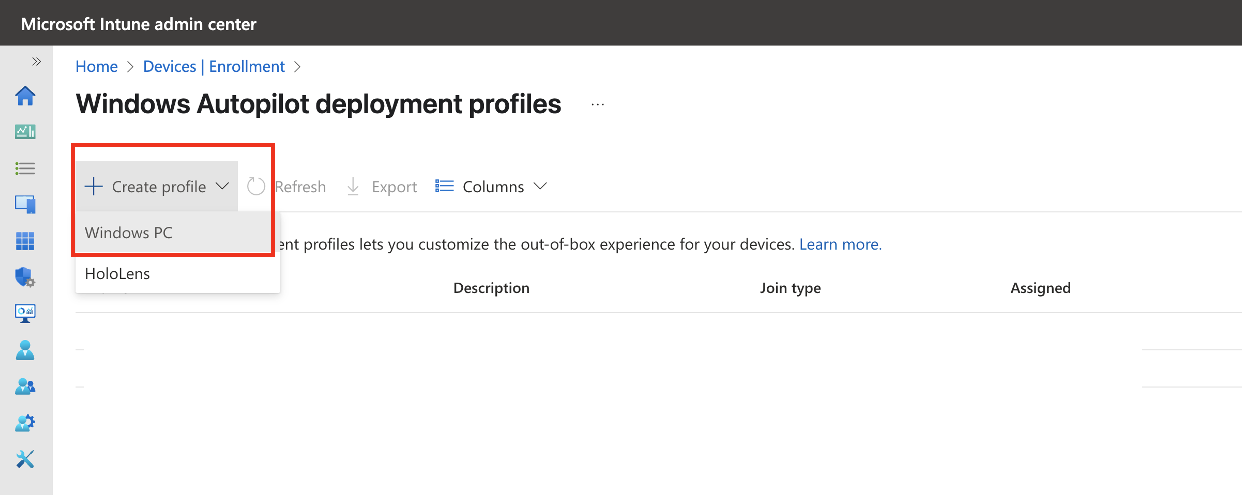
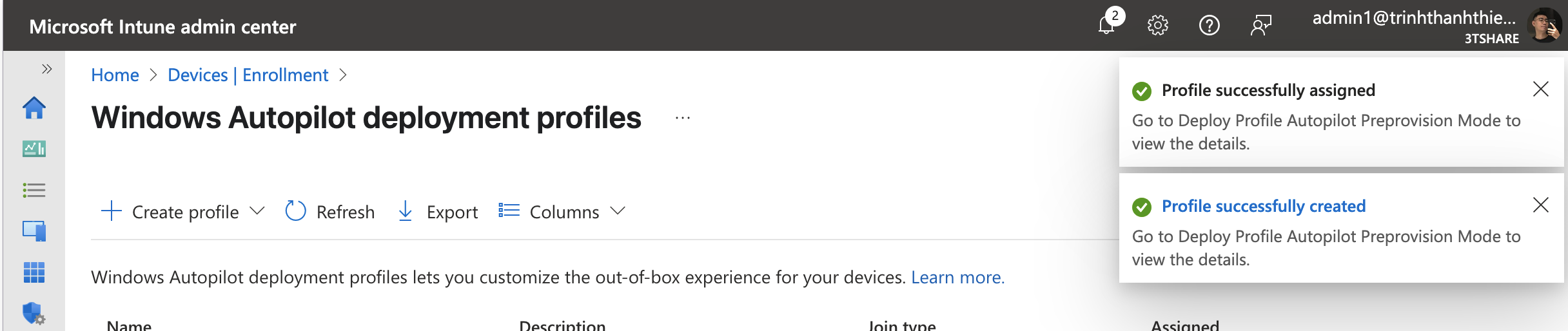
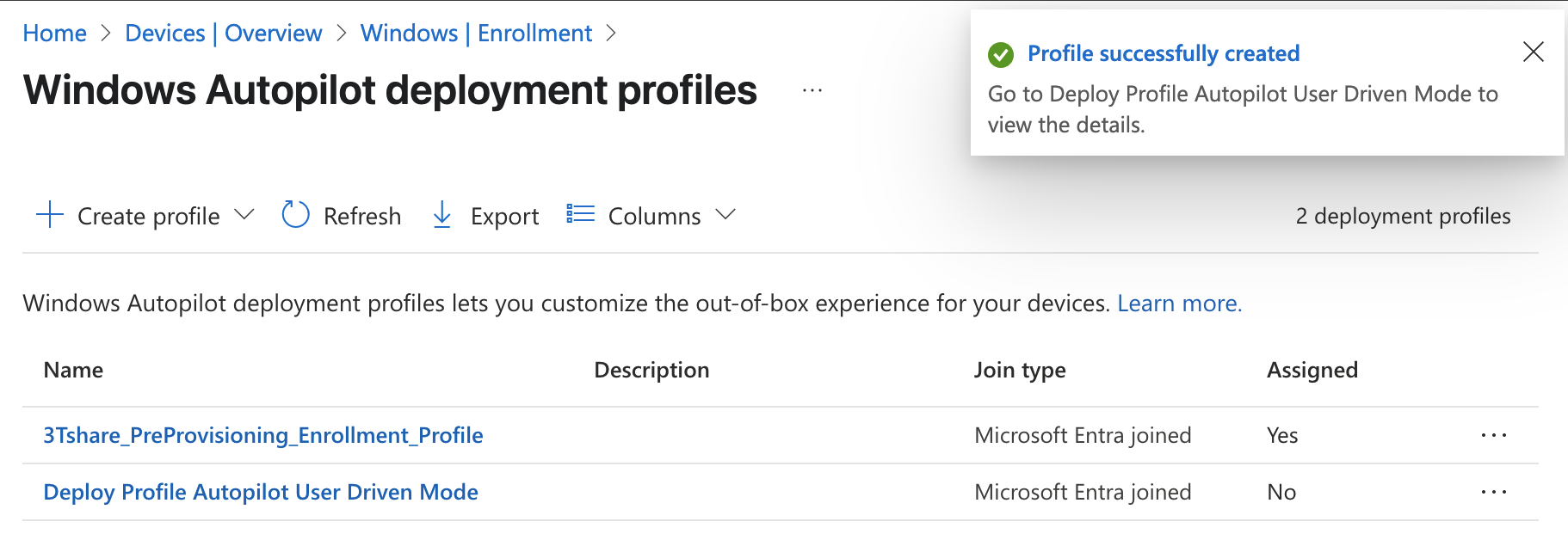
In the Windows Autopilot deployment profiles screen, select the Create Profile drop down menu and then select Windows PC.
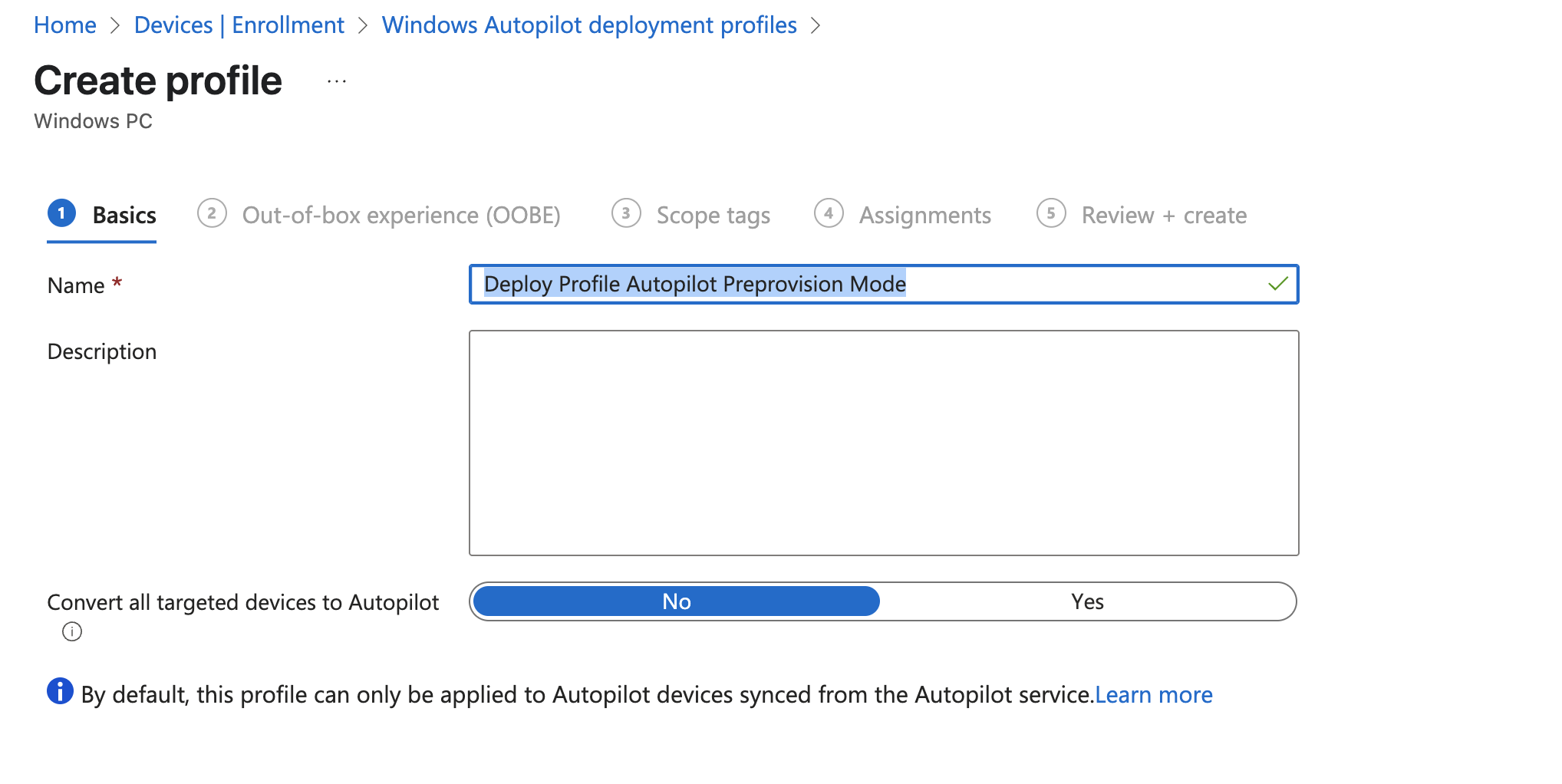
The Create profile screen opens. In the Basics page: 1. Name: [Deploy Profile Autopilot Preprovision Mode] 2. Description 3. Convert all targeted devices to Autopilot: No 4. Next.
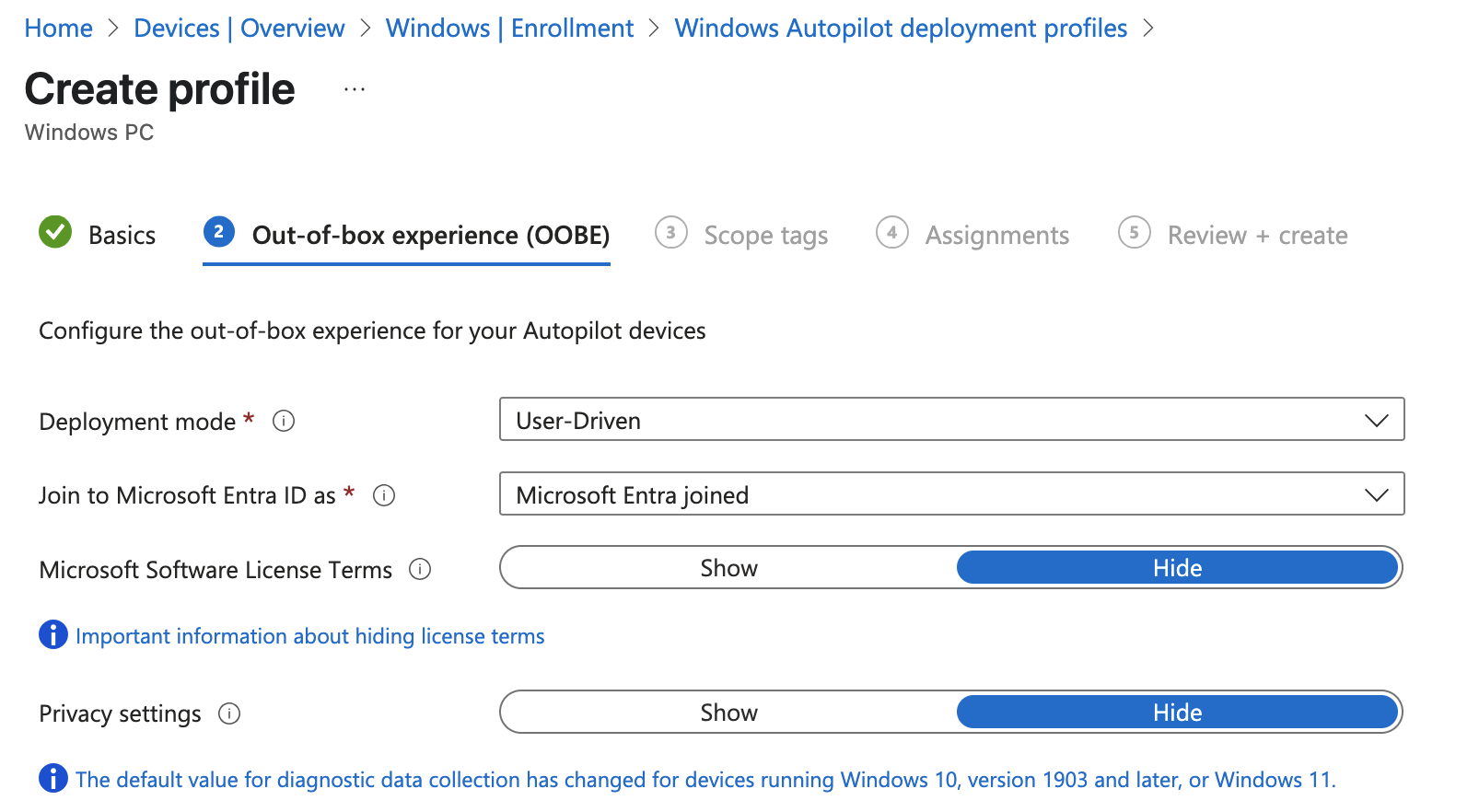
8.1. In the Out-of-box experience (OOBE) page:
For Deployment mode, select User-driven.
For Join to Microsoft Entra ID as, select Microsoft Entra joined.
For Microsoft Software License Terms, select Hide
For Privacy settings, select Hide
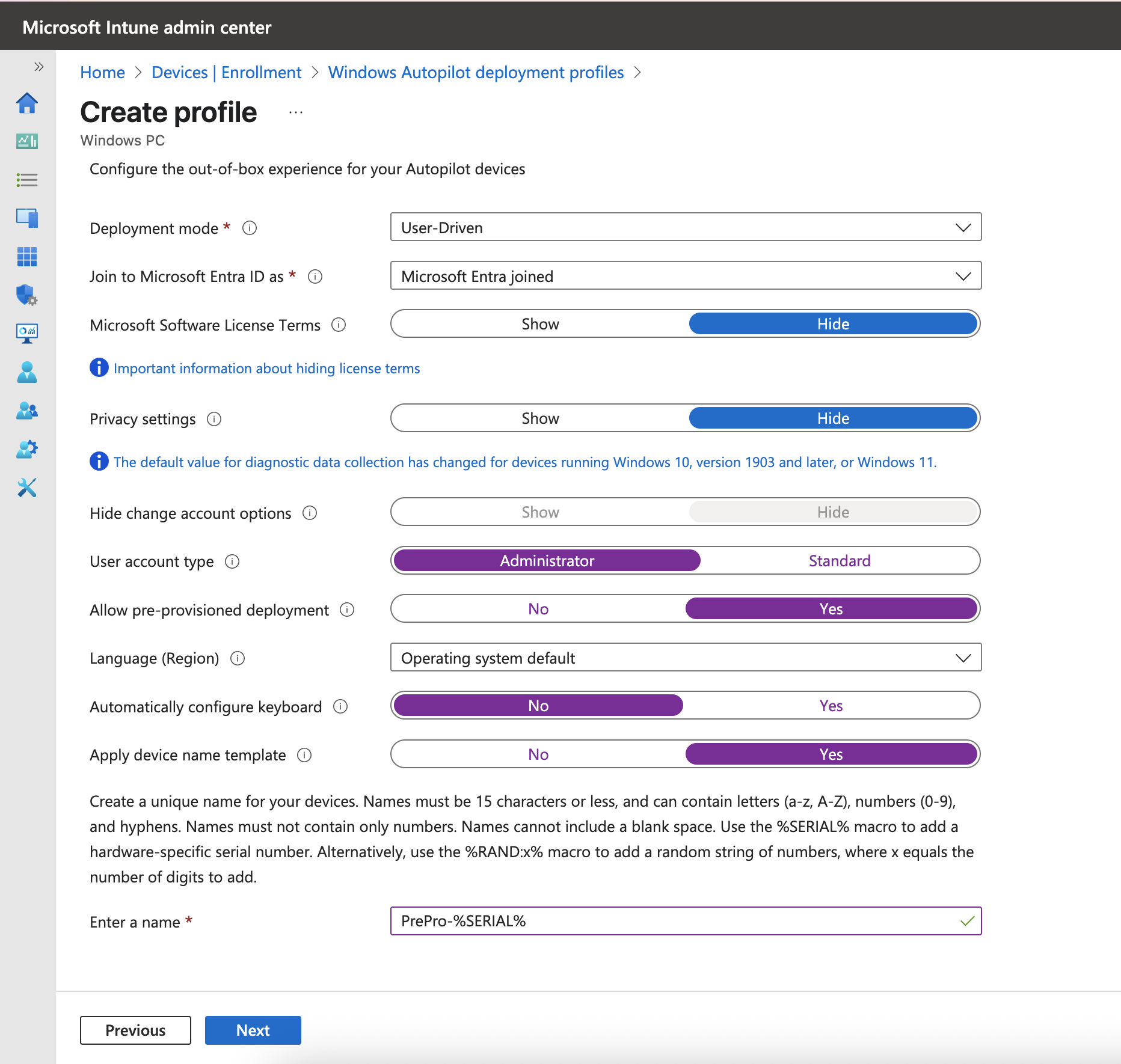
8.2. In the Out-of-box experience (OOBE) page:
For Hide change account options, select Hide.
For User account type, select Administrator.
For Allow pre-provisioned deployment, select Yes.
For Language (Region): Operating system defaults
For Automatically configure keyboard: No
For Apply device name template: PrePro-%SERIAL%
Next
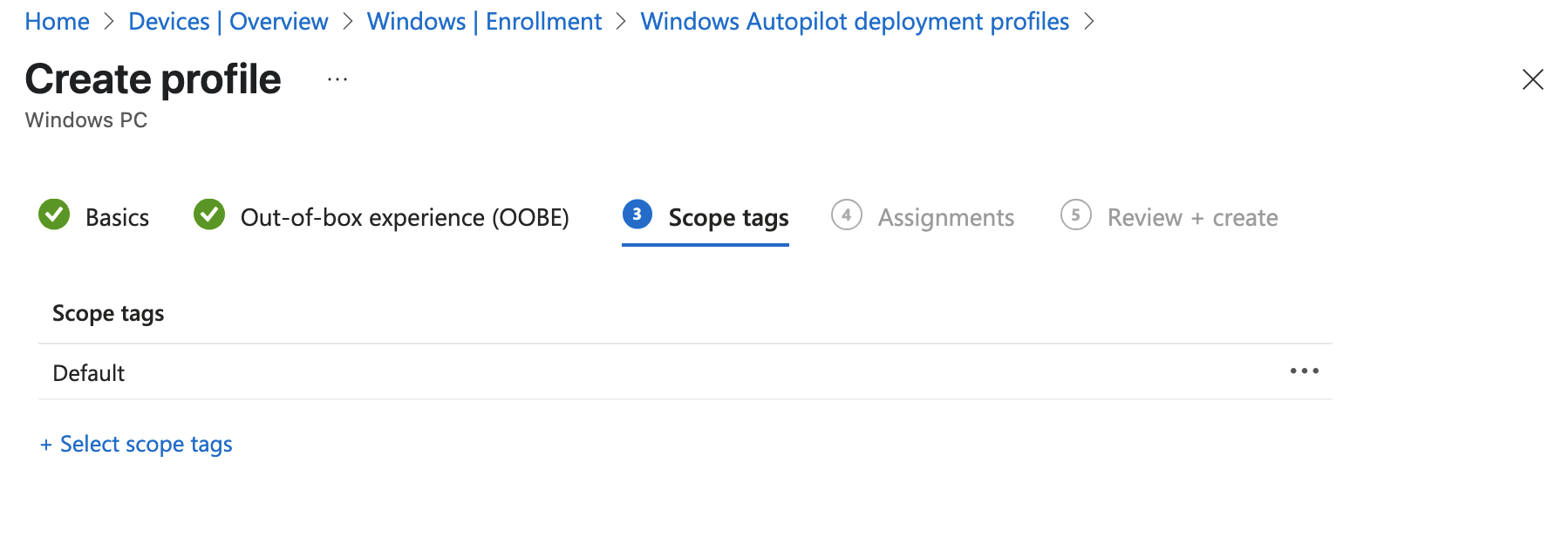
In the Scope Tags tab > Next
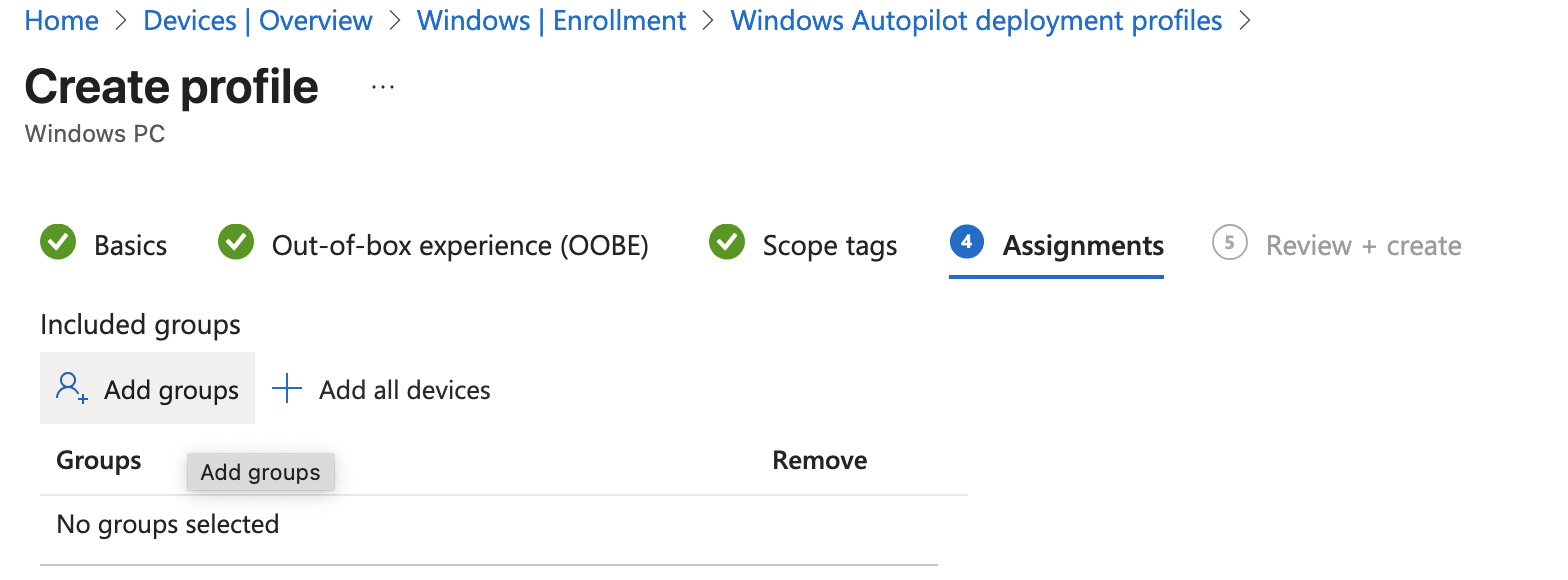
In the Assignments tab - Under Included groups, select Add groups.
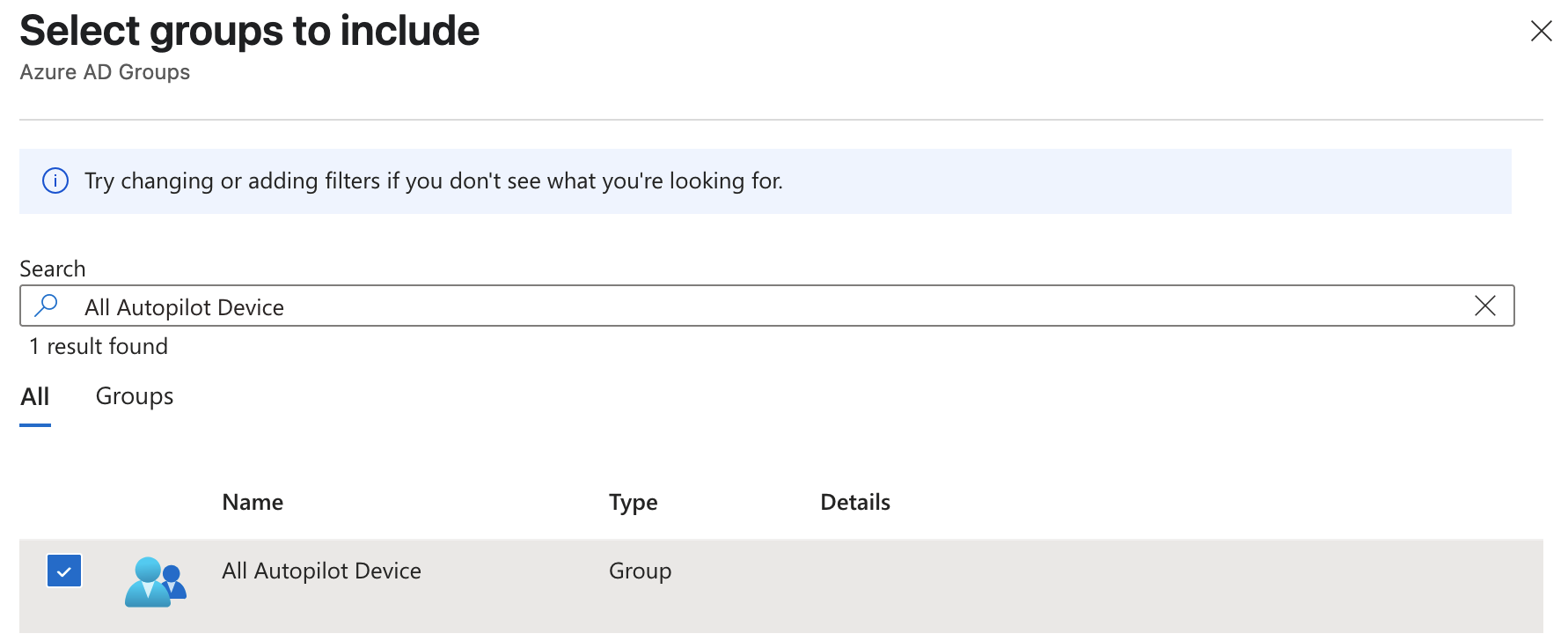
select the group that created in the Step 3 [All Autopilot Device]
Next
In the Assignments > Create
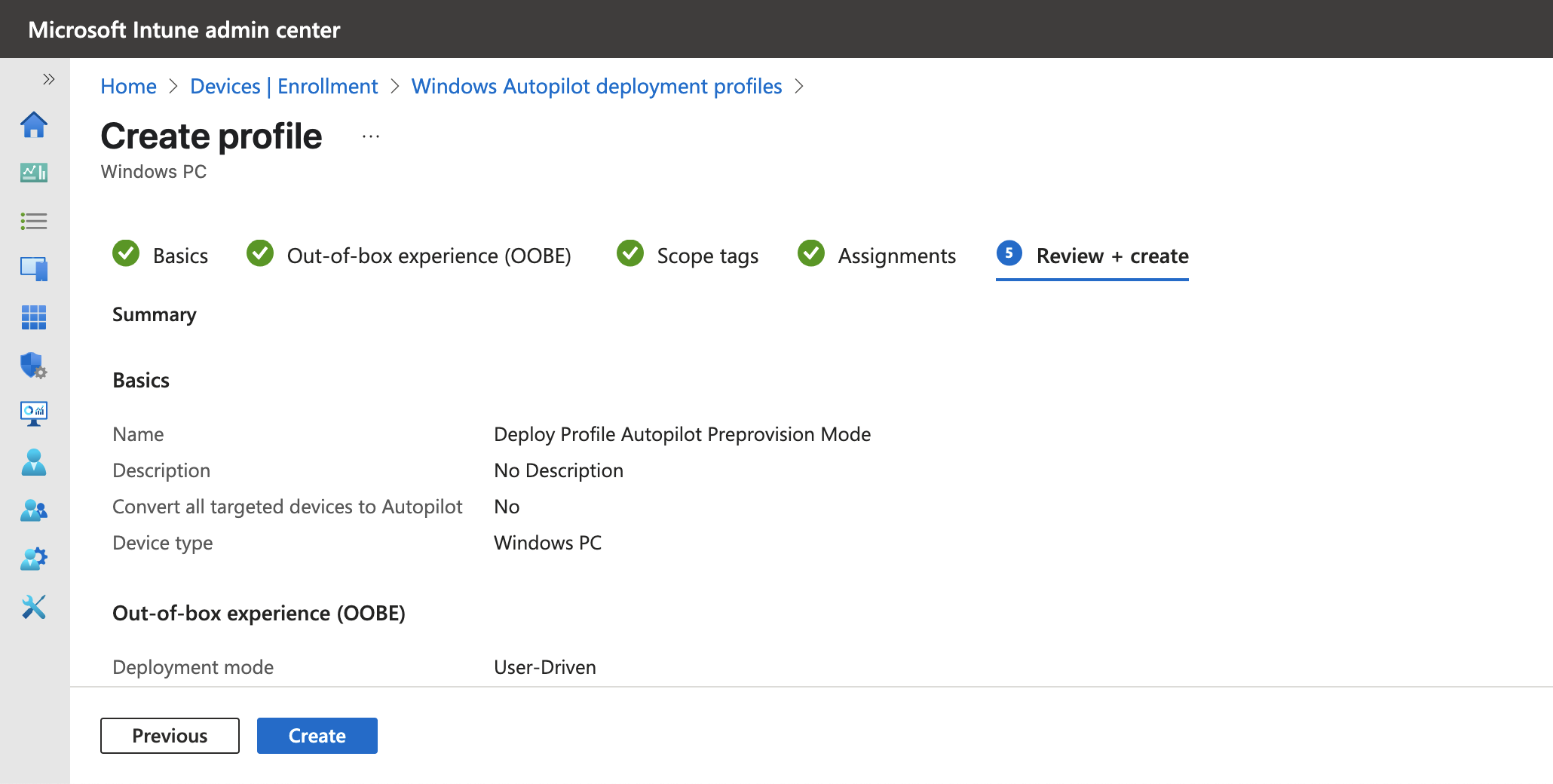
Wait until the notification is successful
III. Admin Workflow
Before a device can use Windows Autopilot, the device must be registered as a Windows Autopilot device.
- Step 1: Register devices as Windows Autopilot devices (new - physical device)
We use the [upload hardware directly] method to register a target device into autopilot service
On a device that is: - Currently undergoing Windows Setup and OOBE:
At the sign-in prompt after OOBE starts, open a command prompt window with the keystroke Shift+F10.
In the command prompt window that opens, start PowerShell by running the following command:
Windows Command Prompt
powershell.exe
Already undergone Windows Setup and OOBE: 1. Sign into the device. 2. Open an elevated Windows PowerShell prompt.
At the
PSPowerShell command prompt, run the following PowerShell commands: - PowerShell[Net.ServicePointManager]::SecurityProtocol = [Net.SecurityProtocolType].Tls12 Set-ExecutionPolicy -Scope Process -ExecutioPolicy RemoteSigned Install-Script -Name Get-WindowsAutopilotInfo -Force
If prompted to do so, agree to install NuGet from the PSGallery > Yes (Y)
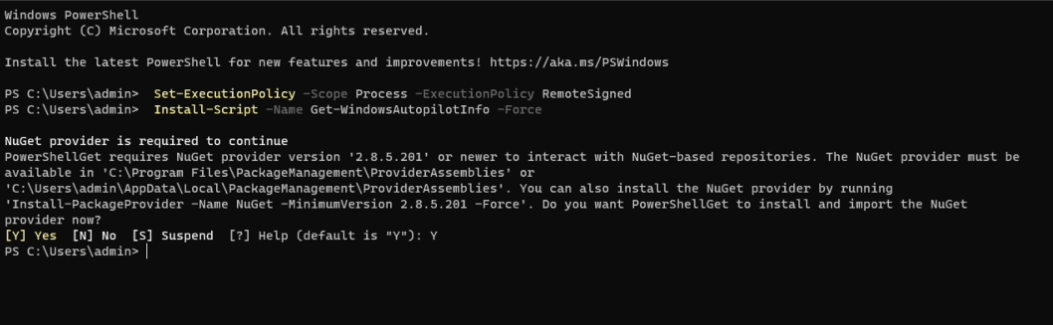
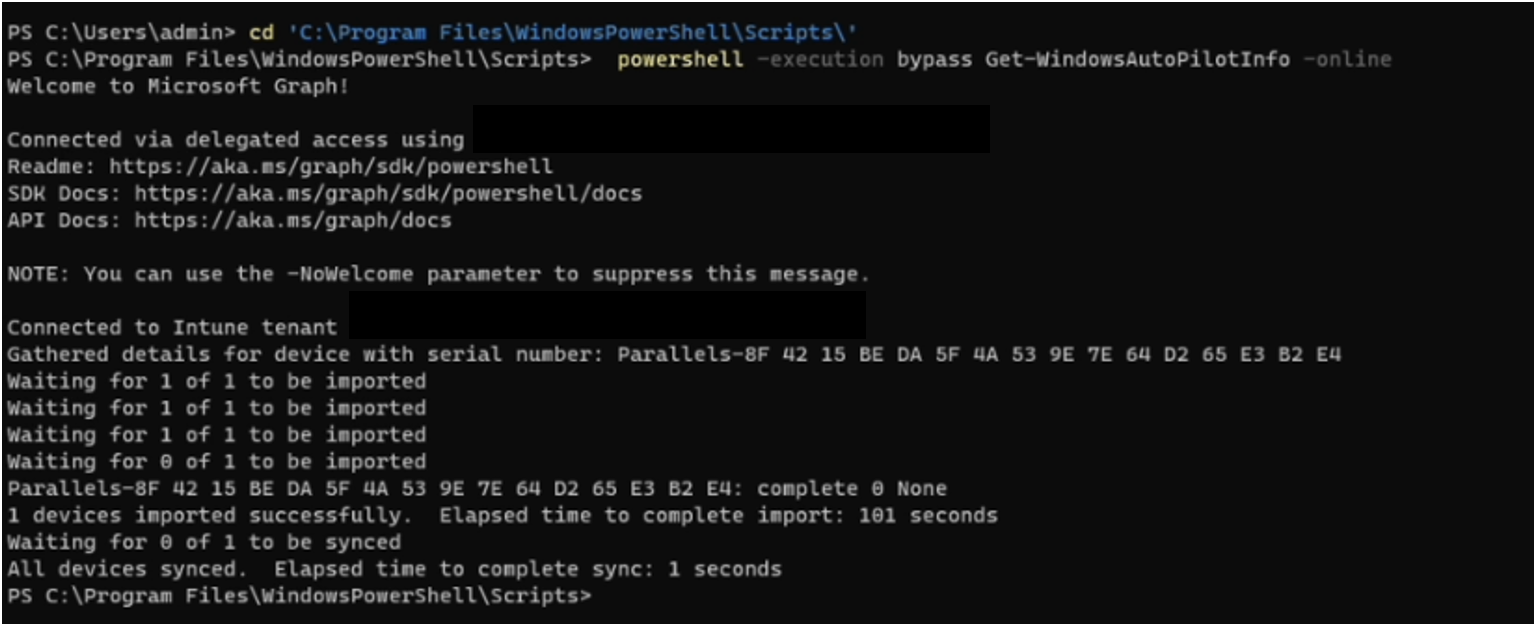
After install the module > run the commands below
cd 'C:\Program Files\WindowsPowerShell\Scripts\'
powershell -execution bypass Get-WindowsAutopilotInfo -Online

When the last command of
Get-WindowsAutopilotInfo -Onlineruns, a Microsoft Entra ID sign-on prompt is displayed. Sign in with an account that is at least an Intune Administrator.
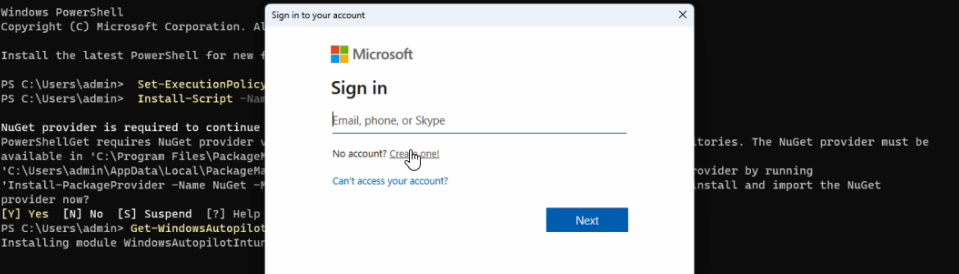
After the sign-in is successful, the device hash uploads automatically. (edit different SN and hash)
Step 2: Verify device has a Windows Autopilot profile assigned to it || Verify the hardware hash uploaded. (edit match device hash)
To confirm the hardware hash for the device was uploaded into Intune and that the device shows as a Windows Autopilot device:
Sign into the Microsoft Intune admin center.
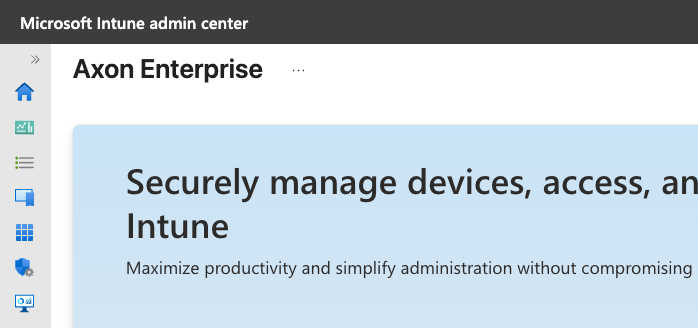
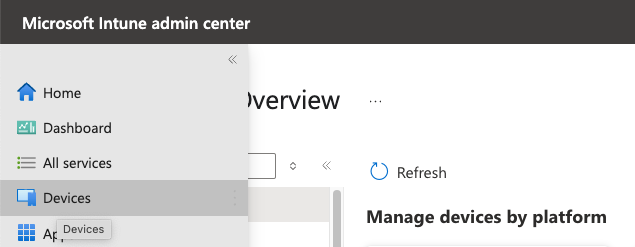
In the Home screen, select Devices in the left hand pane.
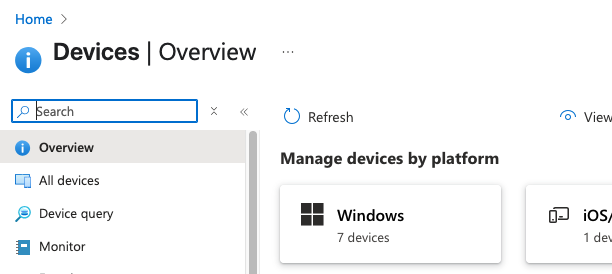
In the Devices | Overview screen, under By platform, select Windows.
In the Windows | Windows devices screen, under Device onboarding, select Enrollment.
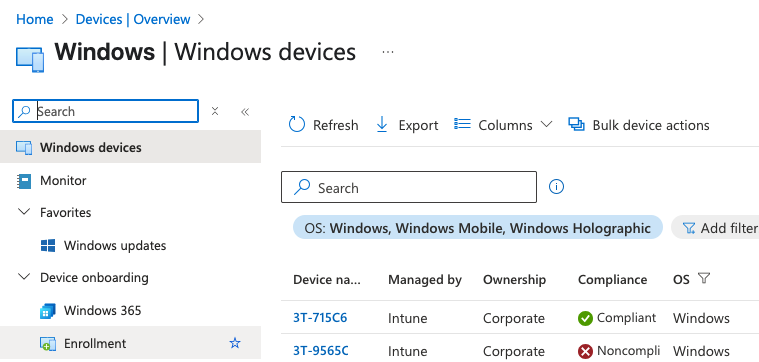
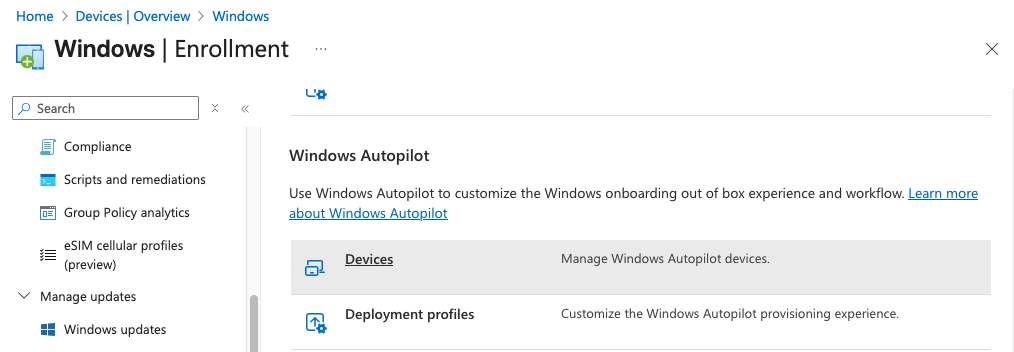
In the Windows | Windows enrollment screen, under Windows Autopilot, select Devices.
In the Windows Autopilot devices screen, select Sync in the toolbar.
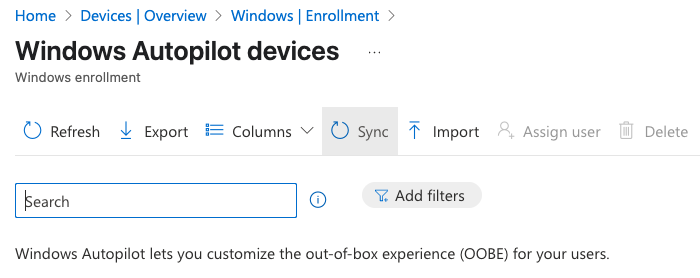
Wait for the sync to finish. The sync might take several minutes.
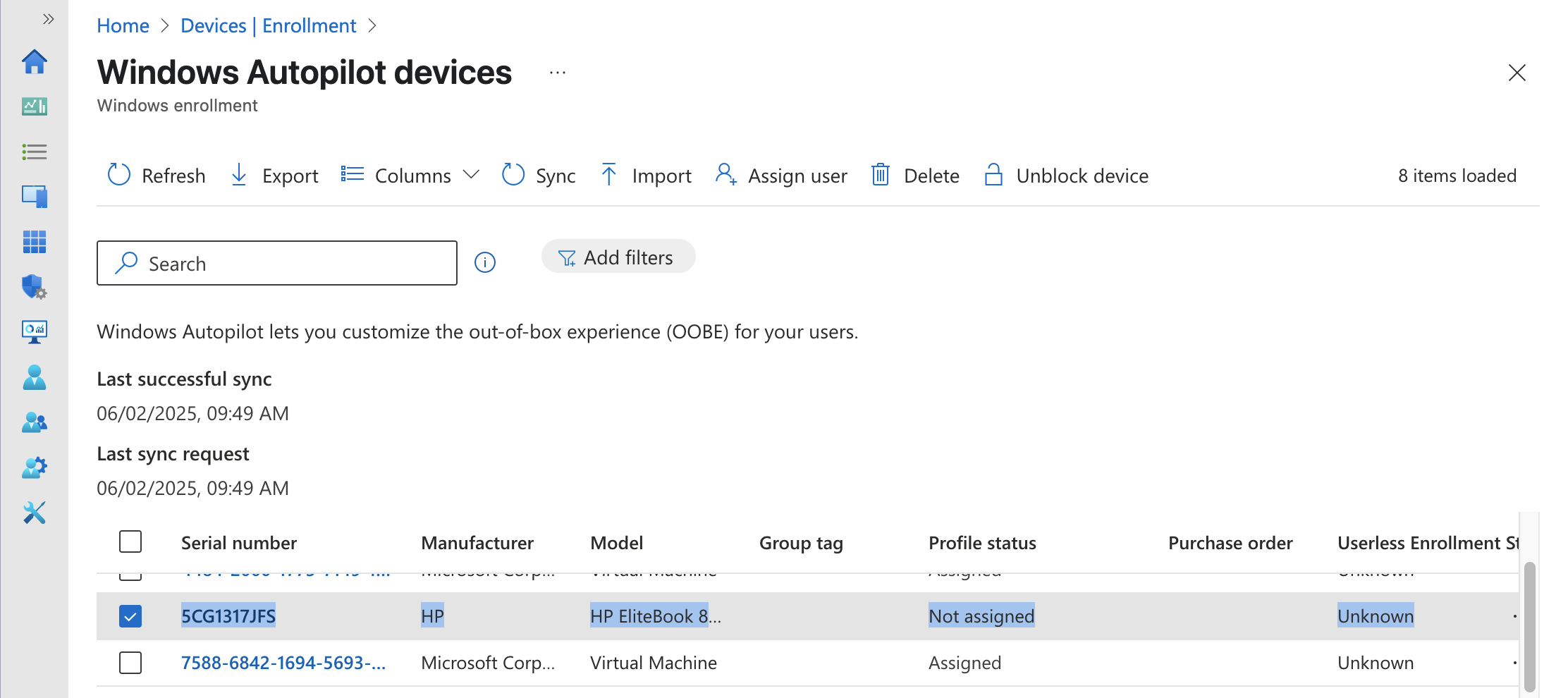
After the sync completes > Search the serial number of target device at the search bar
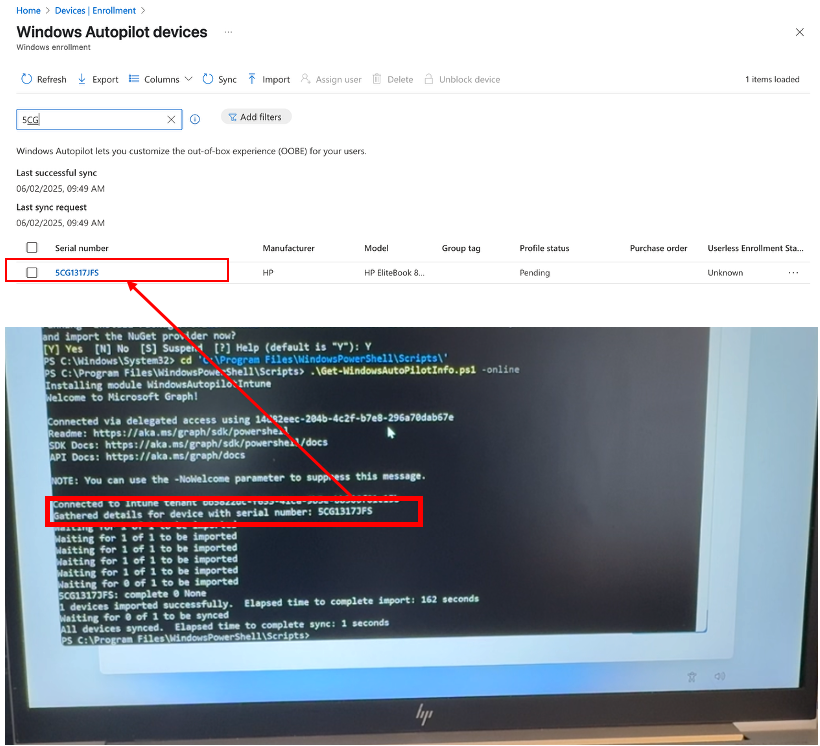
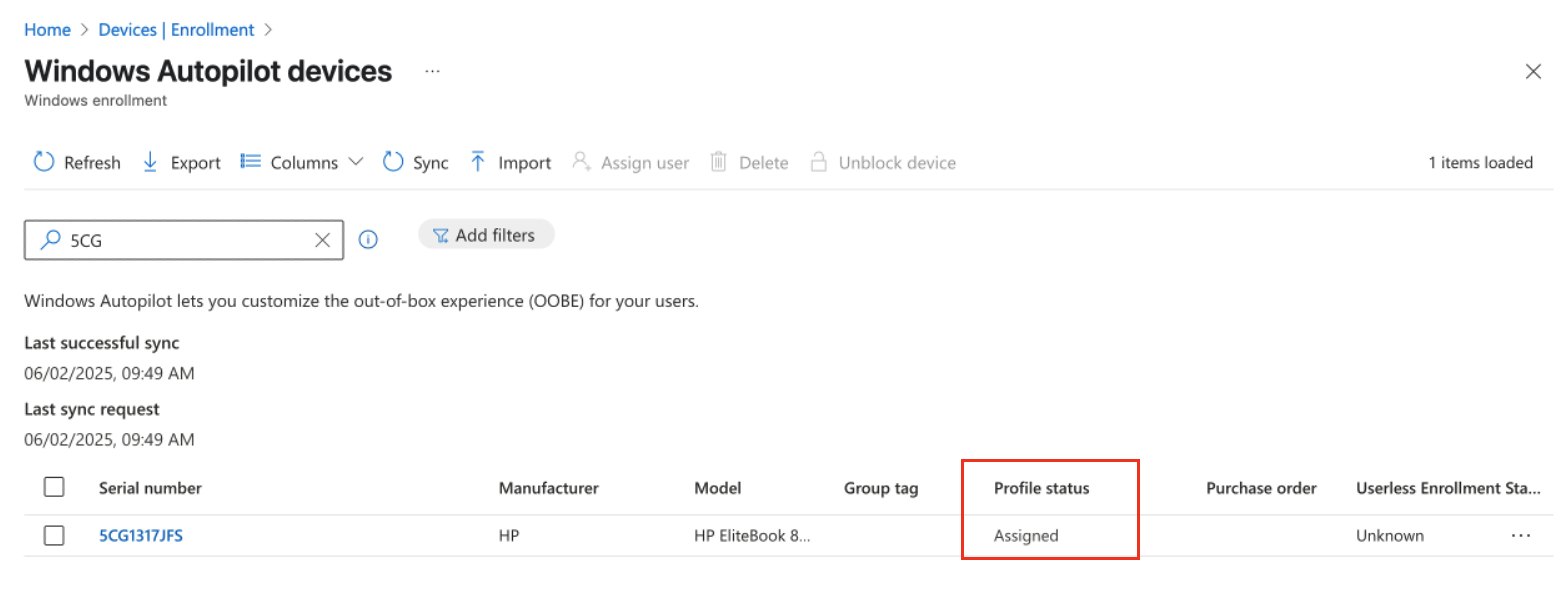
Wait until the profile status is assigned
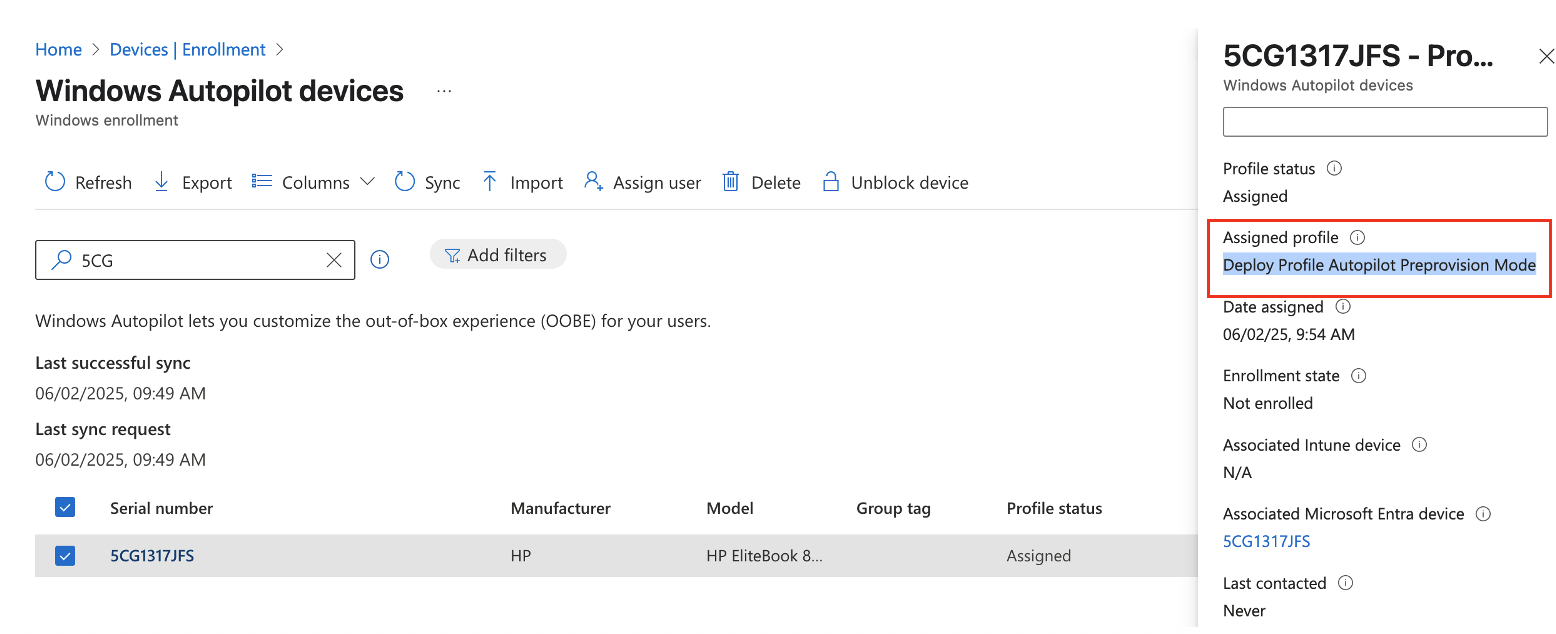
Make sure the profile name that is Deploy Profile Autopilot Preprovision Mode created lately
IV. User Workflow || User experience
Registering a device as a Windows Autopilot device doesn’t mean that the device has used the Windows Autopilot service. It just makes the Windows Autopilot service available to the device.
- Step 1: `Deploy the device <https://learn.microsoft.com/en-us/autopilot/tutorial/user-driven/azure-ad-join-deploy-device>`_
Power on the device.
The out-of-box experience (OOBE) begins and a screen asking for a country or region appears. Select the appropriate country or region > and then select Yes.
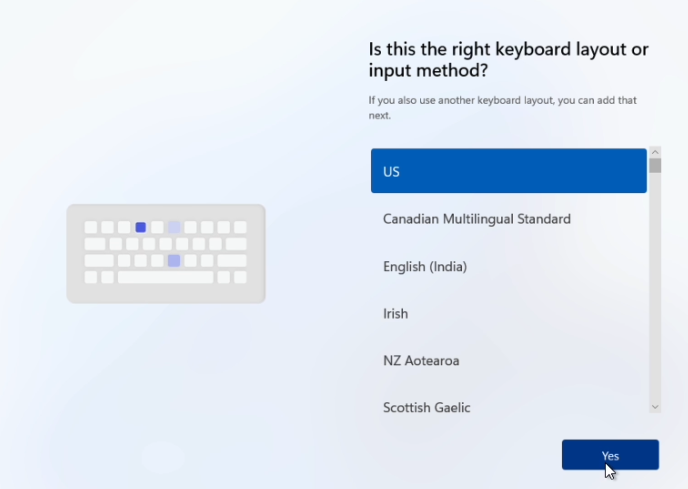
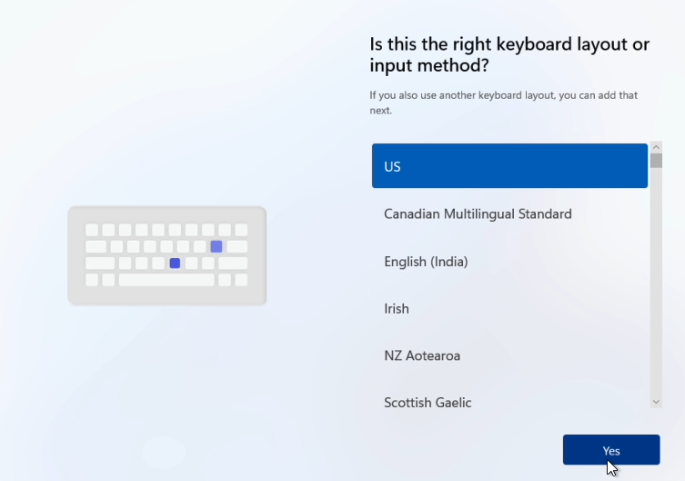
The keyboard screen appears to select a keyboard layout. Select the appropriate keyboard layout > and then select Yes.
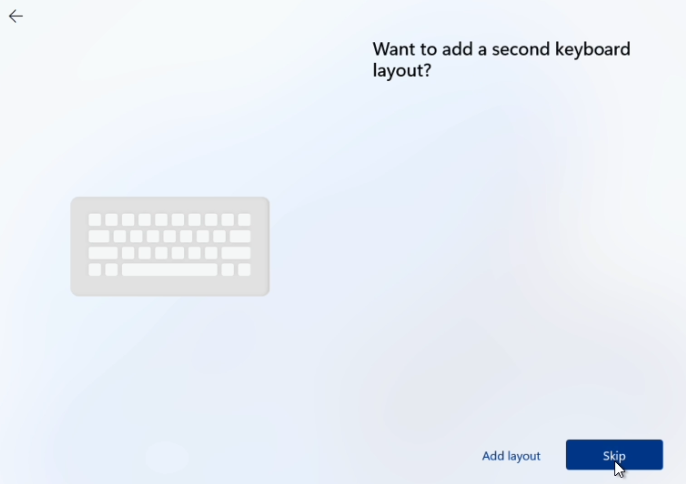
An additional keyboard layouts screen appears > select Skip
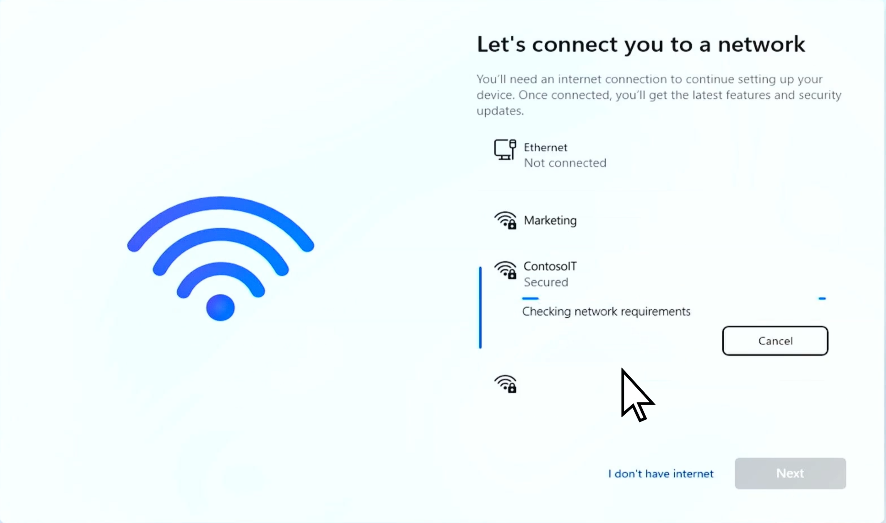
The Let’s connect you to a network screen appears. At this screen, either plug the device into a wired network (if available), or select and connect to a wireless Wi-Fi network.

Once network connectivity is established, the Next button should become available. Select Next.
At this point, the device might reboot to apply critical security updates (if available or applicable). After the reboot to apply critical security updates, the Windows Autopilot process begins.

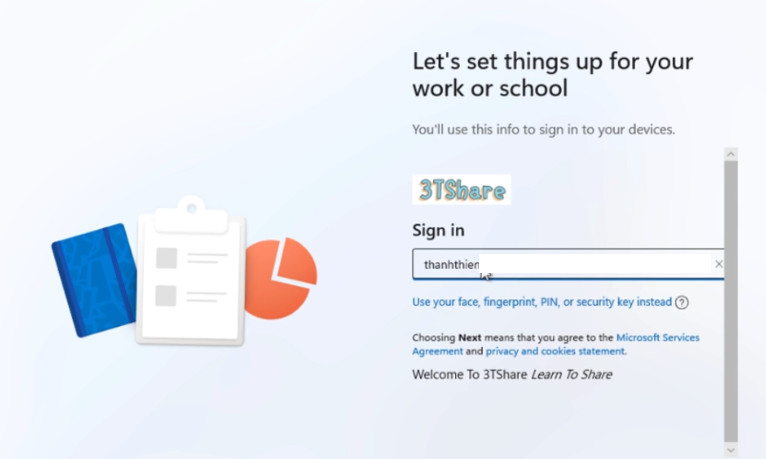
Once the Windows Autopilot process begins, the Microsoft Entra sign-in page appears. > Sign-in with your org account > then select Sign in
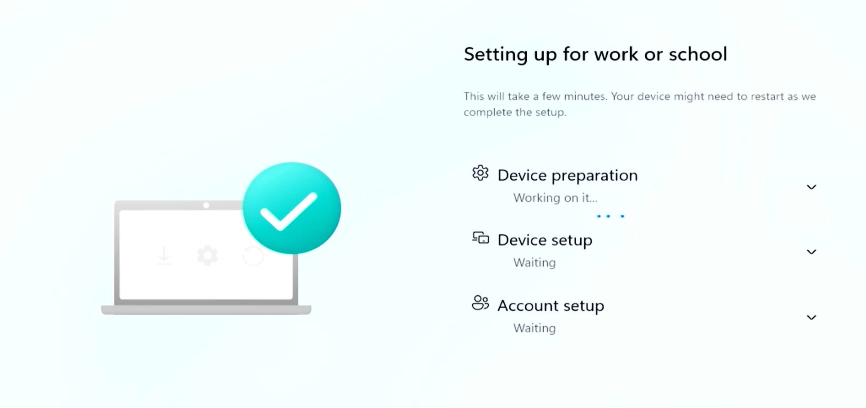
After authenticating with Microsoft Entra ID, the Enrollment Status Page (ESP) appears. The Enrollment Status Page (ESP) displays progress during the provisioning process across three phases: - Device preparation (Device ESP) - Device setup (Device ESP) - Account setup (User ESP)
The first two phases of Device preparation and Device setup are part of the Device ESP while the final phase of Account setup is part of the User ESP.

Once Account setup and the user ESP process completes, the provisioning process completes, the ESP finishes, and the desktop appears. At this point, the end-user can start using the device.
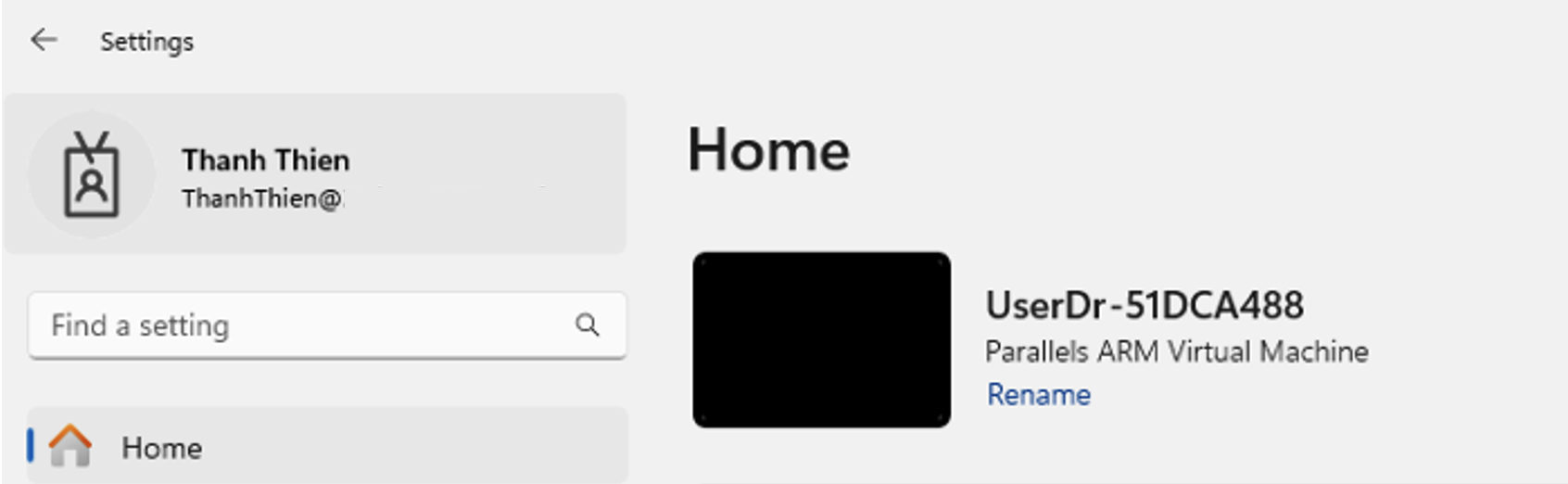
- Step 2: Post-Check
Verify Computer name > The name format is correct as desired
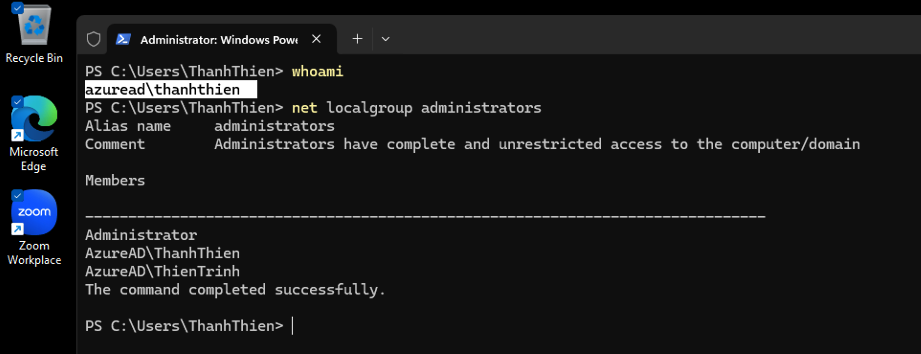
Verify Admin rights

verify installed apps > Zoom already installed
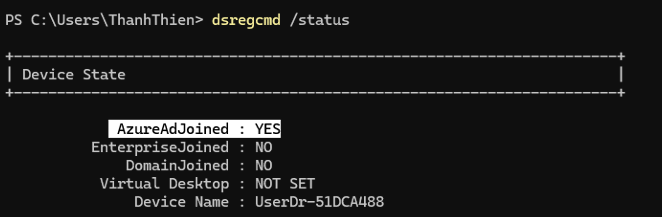
verify managed devices using
dsreg /status
